The Excel LEN function returns the number of characters in a text, including spaces and punctuation.
text |
The text, cell or number to measure. |
|---|
Table of Contents
Basic example
To count the characters in each name, give LEN the cell:
=LEN(B3)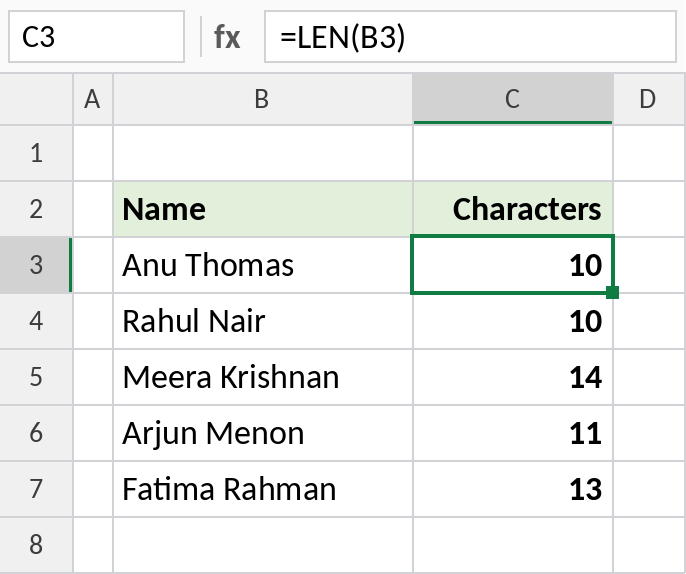
Anu Thomas has 9 letters and 1 space, so LEN returns 10. Spaces always count.
Check entries have the right length
Indian mobile numbers have 10 digits. Use LEN inside IF to flag numbers that are too short or too long:
=IF(LEN(B4)=10,"Valid","Check") 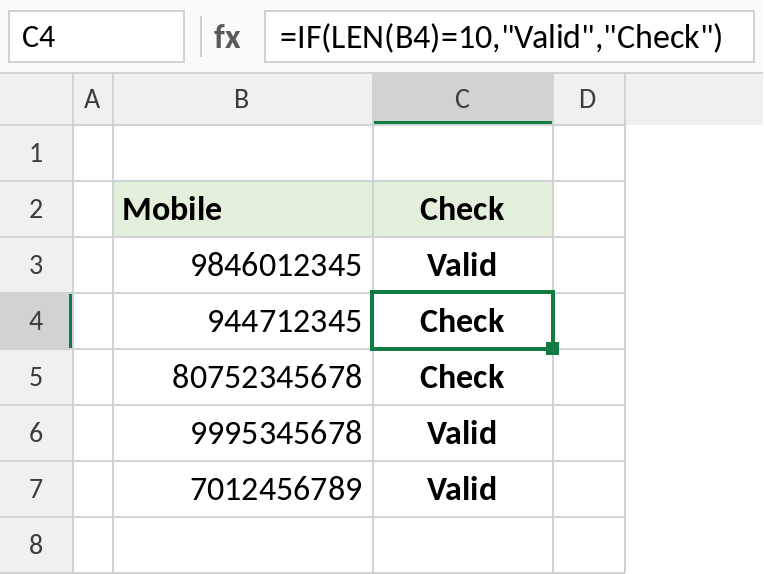
944712345 has only 9 digits and 80752345678 has 11, so both show Check. LEN works on numbers too, counting their digits.
Count words in a cell
Compare the length with and without spaces. The difference is the number of spaces, and one more than that is the number of words:
=LEN(TRIM(B4))-LEN(SUBSTITUTE(B4," ",""))+1 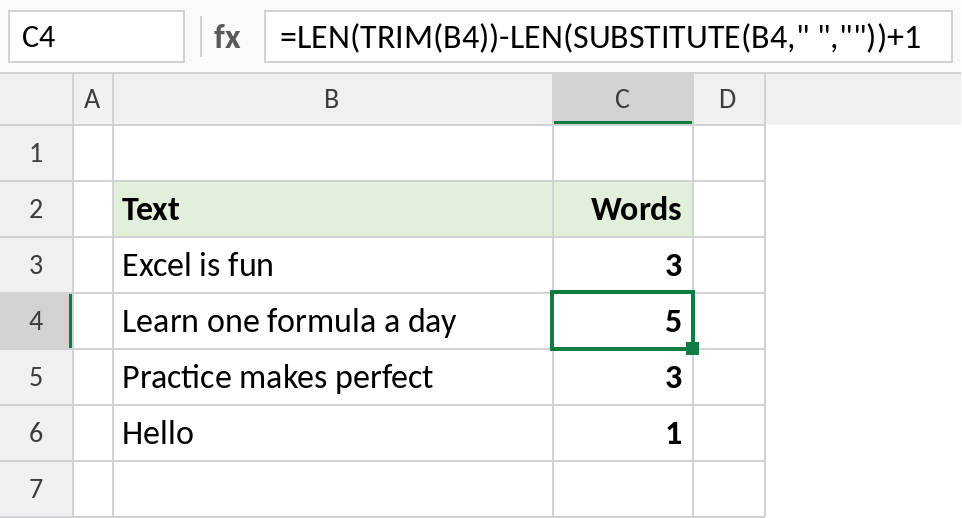
Learn one formula a day has 23 characters, or 19 without spaces. That’s 4 spaces, so 5 words. TRIM removes extra spaces so they don’t inflate the count.
LEN results to know
| Formula | Result | Why |
|---|---|---|
=LEN("Excel") |
5 | 5 letters |
=LEN(" Excel ") |
7 | Leading and trailing spaces count |
=LEN("") |
0 | Empty text |
=LEN(12345) |
5 | Digits of a number |
Notes
- LEN counts every character: letters, numbers, spaces and punctuation.
- On numbers, LEN counts the digits of the stored value, not the formatting, so 1,234.50 shown on screen counts as 6 for 1234.5.
- A cell that looks empty but returns more than 0 has hidden spaces or characters.
- Combine LEN with LEFT, RIGHT and SUBSTITUTE for most text tasks.
Common errors
| Problem | Cause | Fix |
|---|---|---|
| Count higher than expected | Hidden spaces, often at the end | Use =LEN(TRIM(B3)) to compare |
| Word count is 1 for an empty cell | The +1 is still added | Use =IF(TRIM(B3)="",0,LEN(TRIM(B3))-LEN(SUBSTITUTE(B3," ",""))+1) |
| Number length looks wrong | LEN reads the stored value, not the display | Use =LEN(TEXT(B3,"0.00")) |
Practice file
All three examples plus LEN edge cases in a cheat sheet.