The Excel LAMBDA function lets you create your own functions with a formula. Save one in Name Manager and you can use it like any built-in function, for example =ADDGST(C3,D3).
parameter1, ... optional |
Names for the inputs, such as price and rate. Up to 253. |
|---|---|
calculation |
The formula that uses the parameters. Always the last argument. |
Table of Contents
Basic example: test it in a cell
Write the LAMBDA, then put the inputs in brackets straight after it to try it out:
=LAMBDA(price,rate,price*(1+rate))(C3,D3)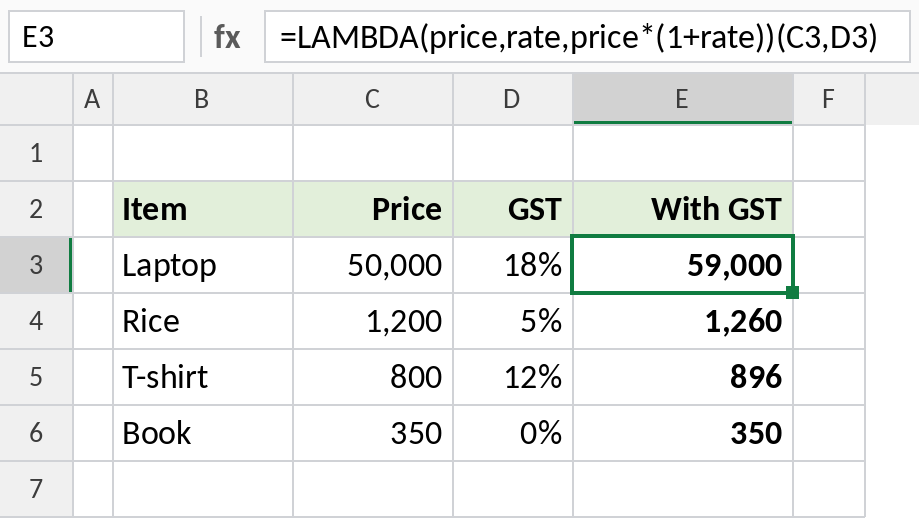
The function takes price and rate and returns the price with GST. The laptop comes to 59,000. Testing in a cell like this lets you check the logic before saving it.
Save it as your own function
Go to Formulas → Name Manager → New. Name it ADDGST, and in *Refers to* paste the LAMBDA without the brackets at the end: =LAMBDA(price,rate,price*(1+rate)). Now use it anywhere in the workbook:
=ADDGST(C3,D3)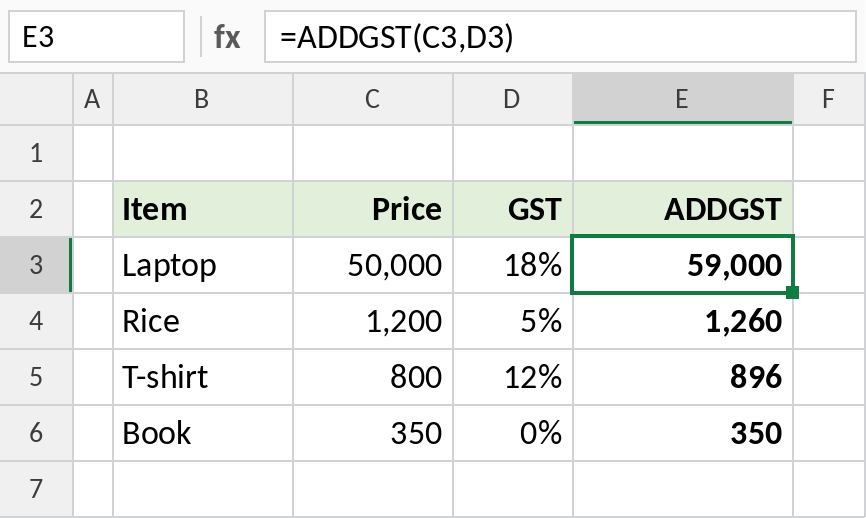
=ADDGST(C3,D3) gives the same 59,000. Change the LAMBDA once in Name Manager and every cell that uses ADDGST updates. The practice file shows the in-cell version, with the steps to create the name.
Use LAMBDA with BYROW
Helper functions like BYROW take a LAMBDA and run it on each row. This finds the gap between each student’s best and worst subject:
=BYROW(C3:E8,LAMBDA(r,MAX(r)-MIN(r)))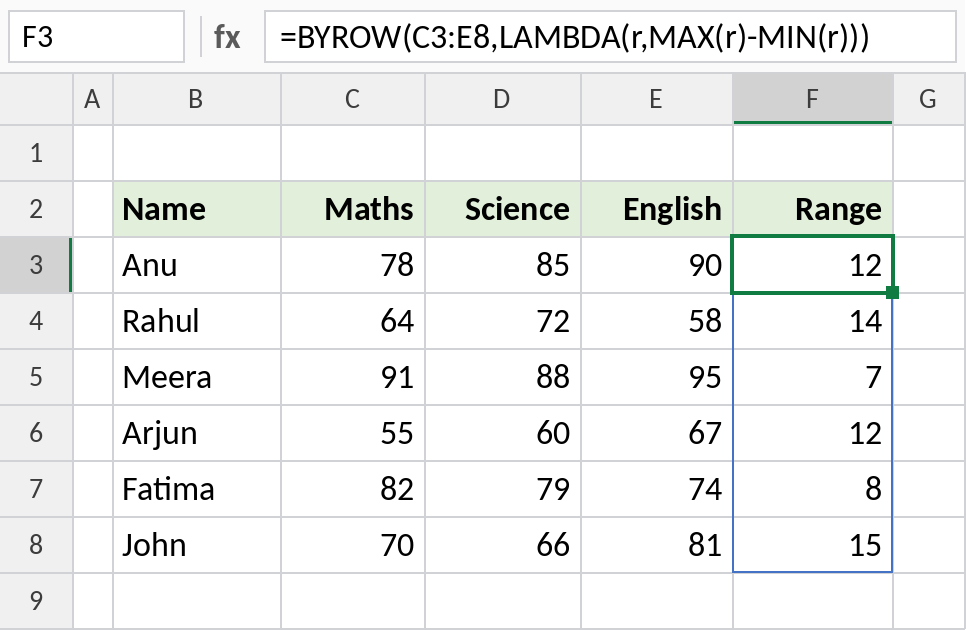
Anu’s scores run from 78 to 90, so her range is 12. One formula covers all six rows.
LAMBDA helper functions
| Function | Runs the LAMBDA on |
|---|---|
| BYROW | Each row, returning one value per row |
| BYCOL | Each column, returning one value per column |
| MAP | Each cell |
| REDUCE | Each value in turn, carrying a running total |
| SCAN | Like REDUCE, but returns every step |
Notes
- Test a LAMBDA in a cell first, by adding the inputs in brackets after it, before saving it in Name Manager.
- Named LAMBDAs only exist in the workbook where you create them. Copy a sheet that uses one to bring the name along.
- Combine LAMBDA with LET to name steps inside your function.
- Add a comment in Name Manager so others know what the function does.
Common errors
| Problem | Cause | Fix |
|---|---|---|
#CALC! |
A LAMBDA entered in a cell without being called | Add the inputs in brackets, or save it in Name Manager |
#VALUE! |
Wrong number of inputs | Pass one value for each parameter |
#NAME? |
Excel 2021 or earlier, or the name isn’t defined | Check Name Manager and your Excel version |
Practice file
All three examples, with steps to create ADDGST in Name Manager (Excel 365).