In 2022 Microsoft added 14 functions to Excel 365 that make text splitting and reshaping ranges a one-formula job. Here’s what each does, with an example, grouped by what they’re for.
Works inMicrosoft 365, Excel for the web, Excel 2024
Not inExcel 2021 or earlier
GroupsText, stacking, reshaping, resizing
Table of Contents
Text: TEXTSPLIT, TEXTBEFORE, TEXTAFTER
| Formula | Result |
|---|---|
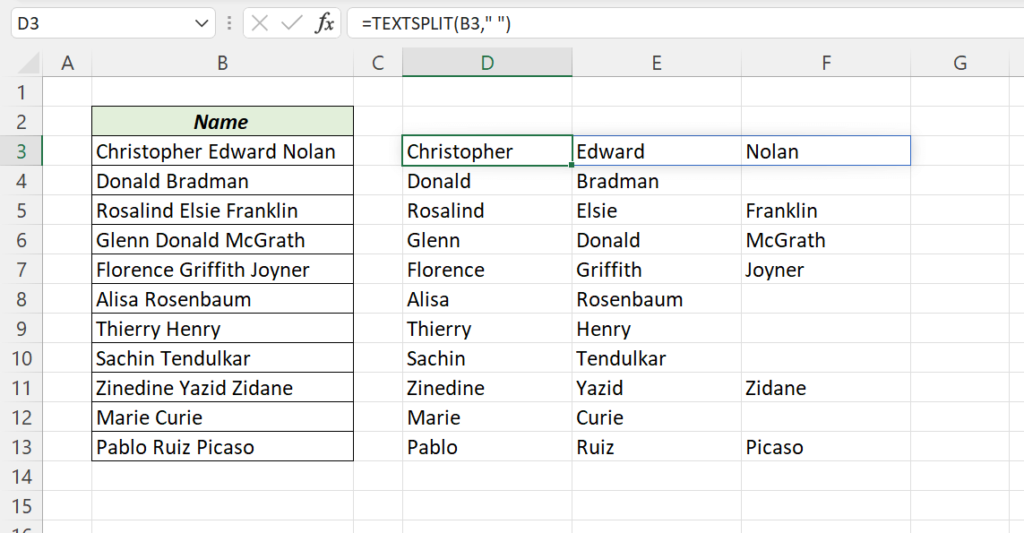
=TEXTSPLIT("Christopher Edward Nolan"," ") |
Christopher | Edward | Nolan |
=TEXTBEFORE("Christopher Edward Nolan"," ") |
Christopher |
=TEXTBEFORE("Christopher Edward Nolan"," ",2) |
Christopher Edward |
=TEXTAFTER("Christopher Edward Nolan"," ") |
Edward Nolan |
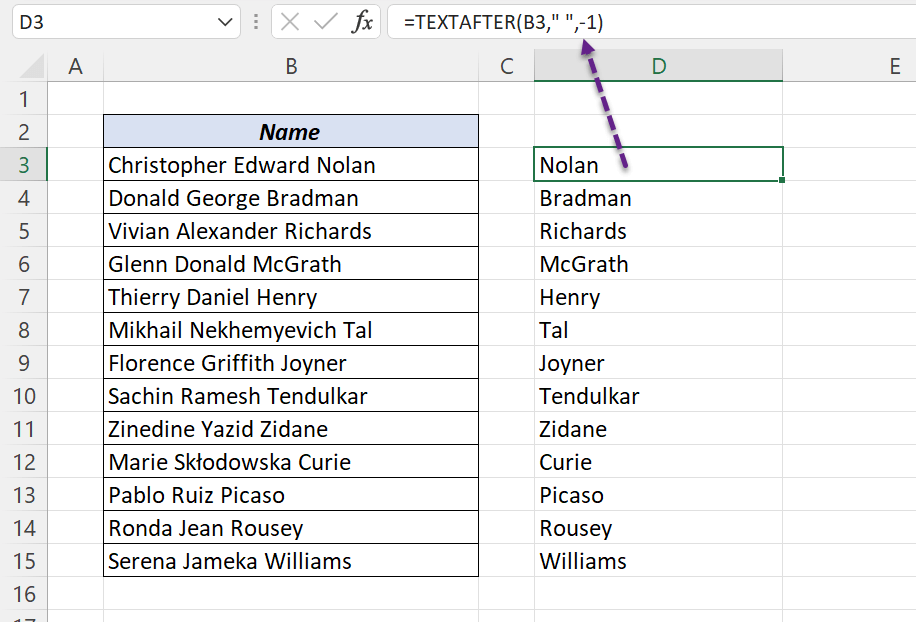
=TEXTAFTER("Christopher Edward Nolan"," ",-1) |
Nolan (after the last space) |
Full guides: TEXTSPLIT, TEXTBEFORE, TEXTAFTER.
Stacking: VSTACK and HSTACK
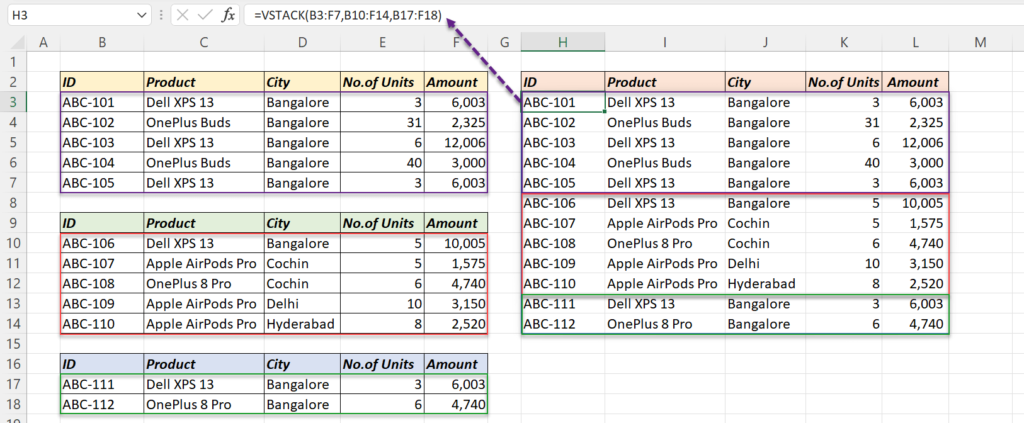
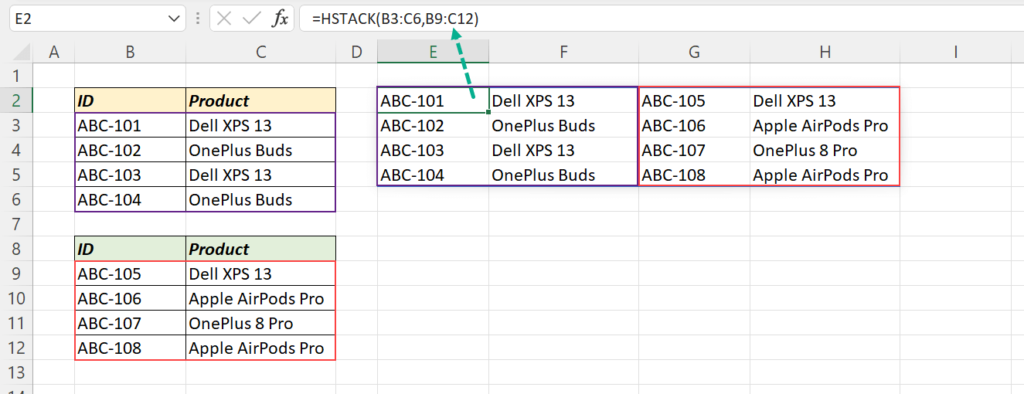
=VSTACK(B4:F8,B11:F15,B18:F19)VSTACK puts ranges one below another; HSTACK puts them side by side. Use Table names and new rows are included automatically.
Reshaping: TOCOL, TOROW, WRAPCOLS, WRAPROWS
| Function | Does |
|---|---|
=TOCOL(B2:E5) |
Turns a block into one column |
=TOROW(B2:E5) |
Turns a block into one row |
=WRAPCOLS(B2:B13,4) |
Turns a list into columns of 4 |
=WRAPROWS(B2:B13,4) |
Turns a list into rows of 4 |
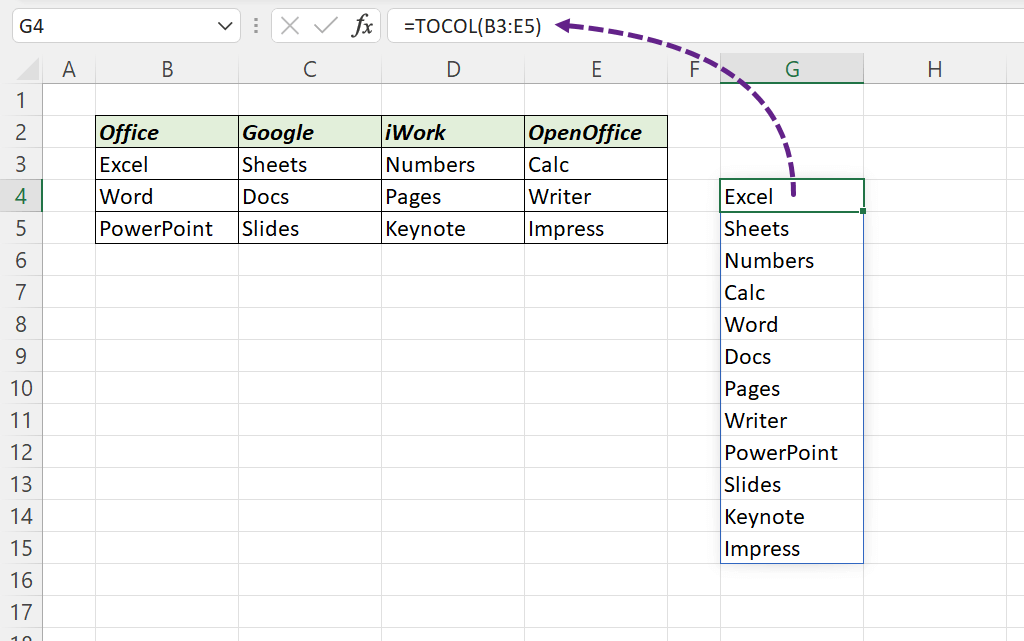
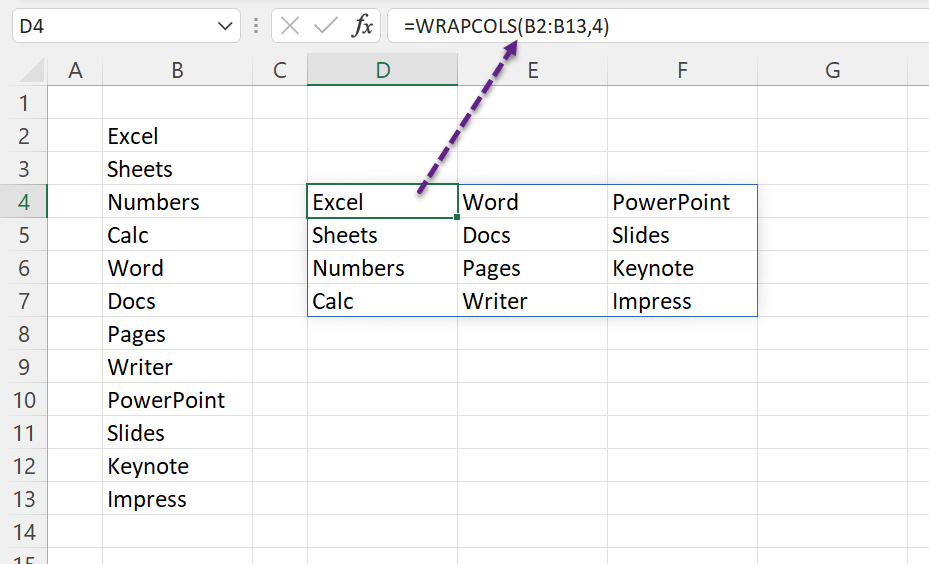
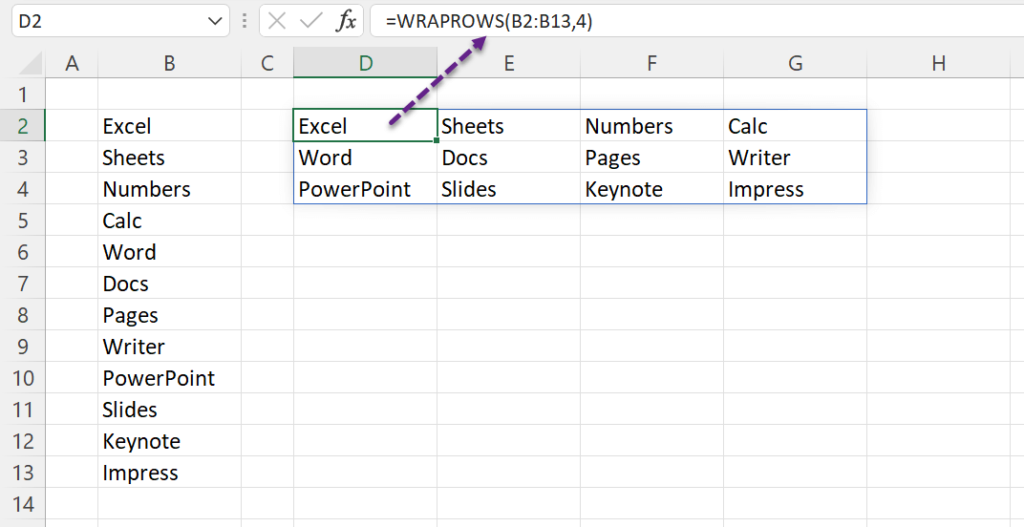
TOCOL’s second argument skips blanks or errors: =TOCOL(B2:E5,1) ignores empty cells.
Resizing: TAKE, DROP, CHOOSEROWS, CHOOSECOLS, EXPAND
| Formula | Result |
|---|---|
=TAKE(B3:F14,3) |
First 3 rows |
=TAKE(B3:F14,-3) |
Last 3 rows |
=TAKE(B3:F14,5,2) |
First 5 rows, first 2 columns |
=DROP(B3:F14,3) |
Everything except the first 3 rows |
=DROP(B3:F14,-3) |
Everything except the last 3 rows |
=CHOOSEROWS(B3:F14,1,5) |
Rows 1 and 5 |
=CHOOSECOLS(B3:F14,1,3) |
Columns 1 and 3 |
=EXPAND(B3:C4,4,3,"") |
Pads the range to 4 rows × 3 columns |
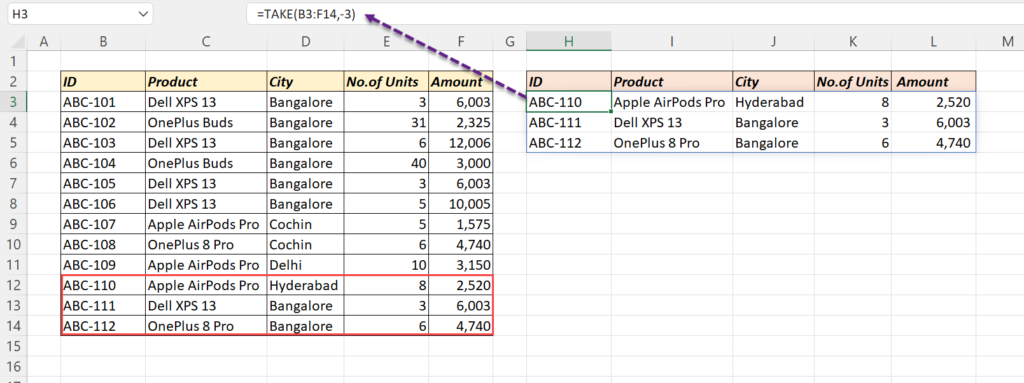
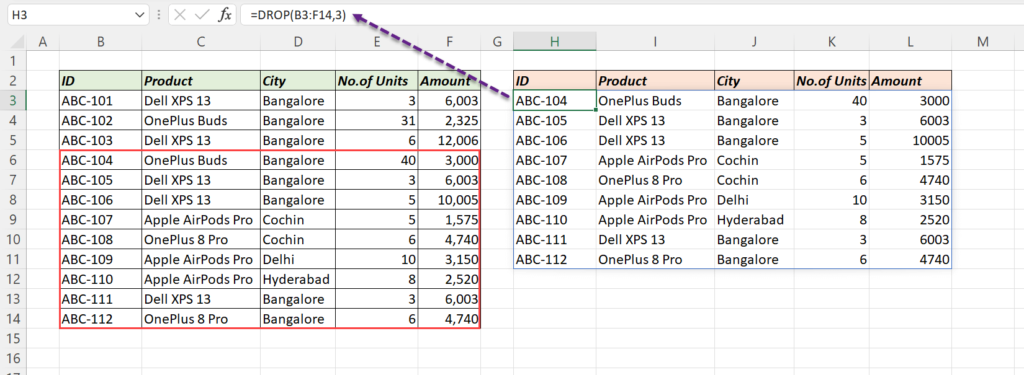
Combine them: =TAKE(SORT(B3:F14,5,-1),5) gives the top 5 rows by the fifth column. See CHOOSECOLS.
Why they matter
- They replace long INDEX/SEQUENCE formulas and many Power Query steps.
- Results spill and update when the source changes.
- Newer still: GROUPBY and PIVOTBY summarise data like a PivotTable, with a formula.