The Excel MATCH function returns the position of a value in a list. It tells you where something is, which makes it the partner of INDEX.
lookup_value |
The value to find. |
|---|---|
lookup_array |
A single row or column to search. |
match_type optional |
0 for an exact match. 1 (the default) finds the largest value less than or equal to the lookup value. -1 finds the smallest value greater than or equal to it. |
Table of Contents
Basic example
To find where Eraser sits in the product list, use 0 for an exact match:
=MATCH(H3,B3:B8,0) 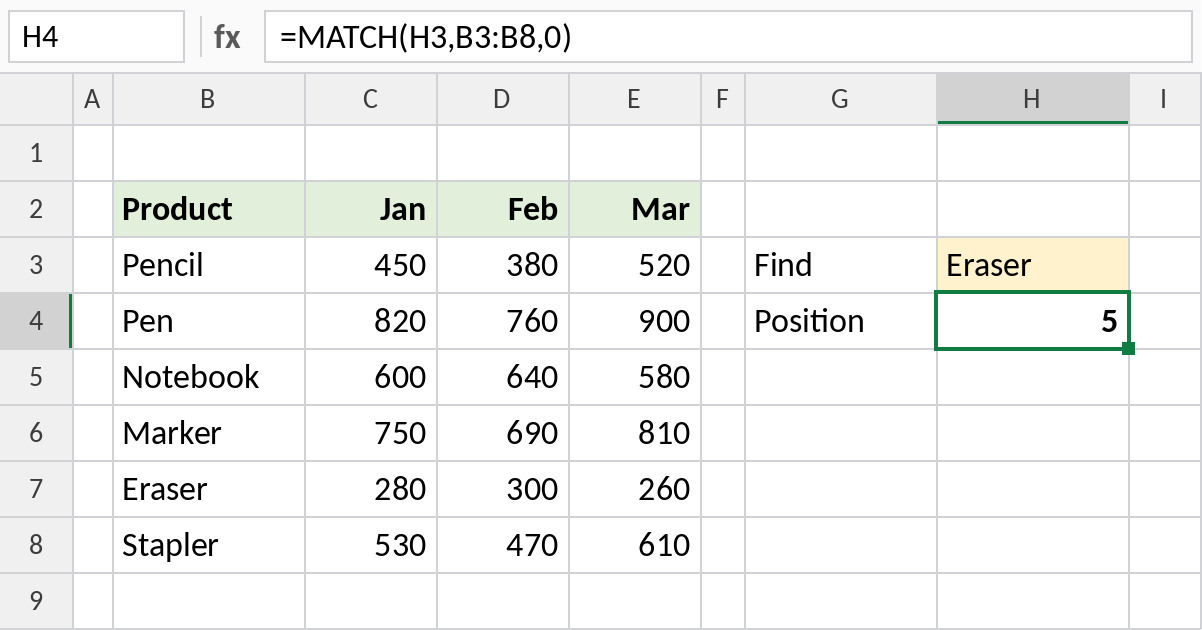
Eraser is the 5th item in B3:B8, so MATCH returns 5. It returns a position, not the value itself.
Find a column position
MATCH works across a row as well. Search the header row to find which column holds a month:
=MATCH(H3,C2:E2,0) 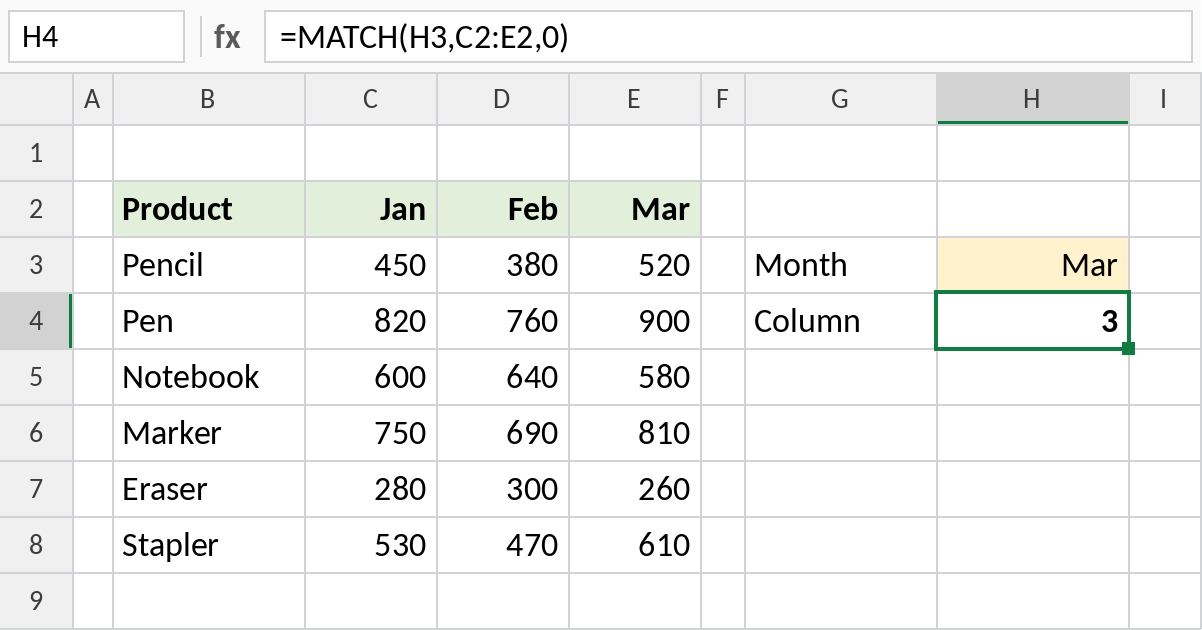
Mar is the 3rd header in C2:E2, so the result is 3. Feed this into INDEX or VLOOKUP so the formula never needs a hard-coded column number.
Approximate match in a sorted list
With match_type 1, MATCH finds the largest value that is less than or equal to the lookup value. The list must be sorted smallest to largest:
=MATCH(F3,B3:B6,1) 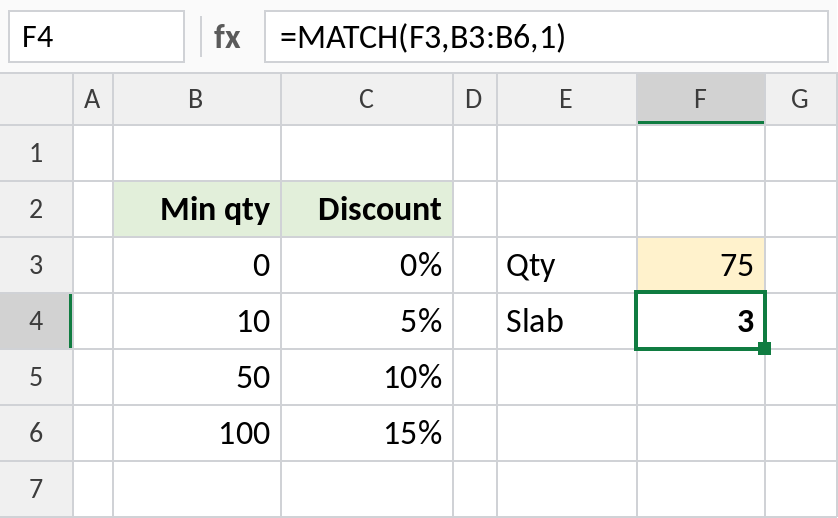
75 falls between 50 and 100, so MATCH returns 3, the position of 50. =INDEX(C3:C6,F4) would then return the 10% discount.
match_type at a glance
| match_type | Finds | List must be |
|---|---|---|
0 |
Exact match only | Any order |
1 or omitted |
Largest value ≤ lookup value | Sorted ascending |
-1 |
Smallest value ≥ lookup value | Sorted descending |
With 0, you can use wildcards: =MATCH("Note*",B3:B8,0) returns 3. In Excel 365, XMATCH adds more options and defaults to exact match.
Notes
- Always type 0 for exact matches. The default is 1, which can return wrong positions on unsorted data.
- MATCH is not case-sensitive: “pen” matches Pen.
- If there are duplicates, MATCH returns the position of the first one.
lookup_arraymust be a single row or column.
Common errors
| Problem | Cause | Fix |
|---|---|---|
#N/A |
The value isn’t found, often because of extra spaces or numbers stored as text | Clean the data; wrap with IFERROR for a message |
| Wrong position | match_type left out on unsorted data |
Add 0 as the third argument |
#N/A with approximate match |
The lookup value is smaller than the first item | Start the list with the smallest possible value, such as 0 |
Practice file
All three examples plus extra formulas in a cheat sheet.