The Excel CHAR function returns the character for a code number from 1 to 255. It’s mostly used to insert characters you can’t type easily into a formula, such as a line break.
PurposeCharacter from a code
ReturnsA single character
Available inAll Excel versions, Excel for the web, Google Sheets
number |
A code from 1 to 255. |
|---|
Table of Contents
Basic example
Each code number returns one character:
=CHAR(B3)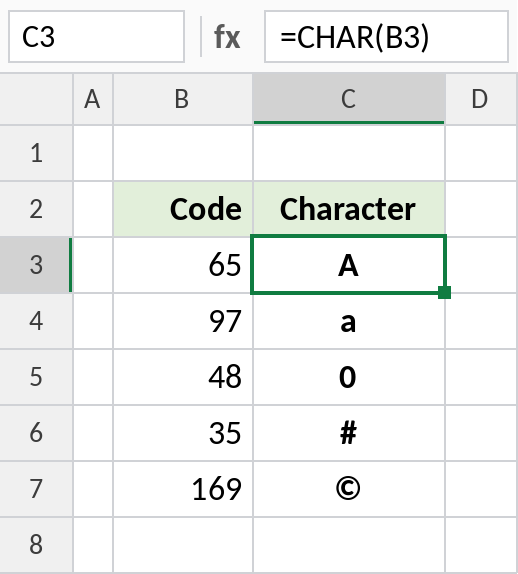
Code 65 is A, 97 is a lowercase a and 169 is ©. The codes for letters, digits and punctuation are the same on every computer.
Letters from numbers
Capital letters start at code 65, so 64 plus a number from 1 to 26 gives that letter of the alphabet:
=CHAR(64+B3)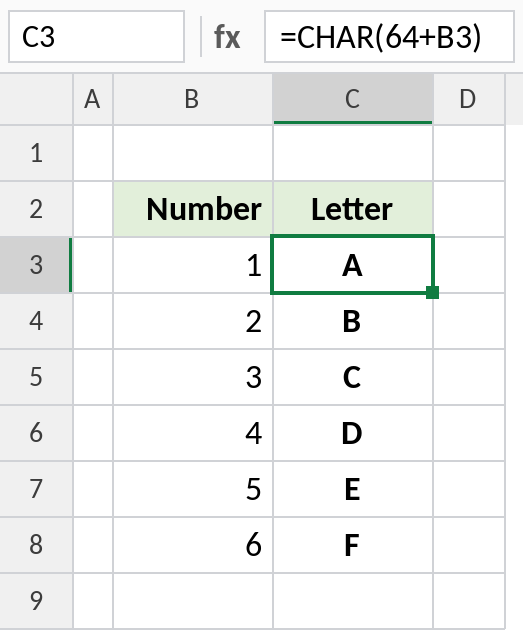
1 becomes A, 2 becomes B, and so on. Use CHAR(96+B3) for lowercase.
Useful CHAR codes
| Formula | Gives | Use it for |
|---|---|---|
CHAR(10) |
Line break | =B3&CHAR(10)&C3, with Wrap Text turned on |
CHAR(34) |
Double quote “ | Quotes inside text |
CHAR(9) |
Tab | Text exported to other programs |
CHAR(160) |
Non-breaking space | Finding it in web data with SUBSTITUTE |
For characters beyond 255, such as ₹ or emoji, use UNICHAR: =UNICHAR(8377) returns ₹.
Notes
- CODE is the opposite:
=CODE("A")returns 65. - Codes above 127 can vary between Windows and Mac.
- A line break with CHAR(10) only shows when Wrap Text is turned on for the cell.
- For any Unicode character, use UNICHAR and UNICODE instead.
Common errors
| Problem | Cause | Fix |
|---|---|---|
#VALUE! |
Number less than 1 or more than 255 | Use UNICHAR for higher codes |
| Line break doesn’t show | Wrap Text is off | Turn on Home → Wrap Text |
Practice file
Both examples plus useful codes in a cheat sheet.