Excel macros automate the tasks you repeat every day: adding sheets, cleaning data, creating PDFs and more. Below are 52 ready-to-use VBA macros, grouped by task. Copy a code, paste it into Excel and run it. No programming knowledge needed.
Table of Contents
What is a macro?
A macro is a set of instructions that Excel runs for you, step by step. Anything you can do with the mouse and keyboard, such as formatting cells, adding sheets or copying data, a macro can do in a second, and the same way every time.
You can create a macro in two ways: record your actions with the Macro Recorder, or write the code yourself in VBA. The macros on this page are written in VBA, ready for you to copy.
What is VBA?
VBA (Visual Basic for Applications) is the programming language built into Excel and the other Office apps. With VBA you can:
- Automate tasks with macros, from small clean-ups to full reports.
- Create your own functions (user-defined functions) that work like SUM or VLOOKUP.
- Work with other apps, such as sending emails through Outlook or creating Word documents from Excel data.
Before you start: show the Developer tab
The Developer tab holds the macro tools, but it’s hidden by default. Go to File → Options → Customize Ribbon, tick Developer in the list on the right, and click OK. You only need to do this once.
How to use the macros on this site
- Copy the code from the macro’s page.
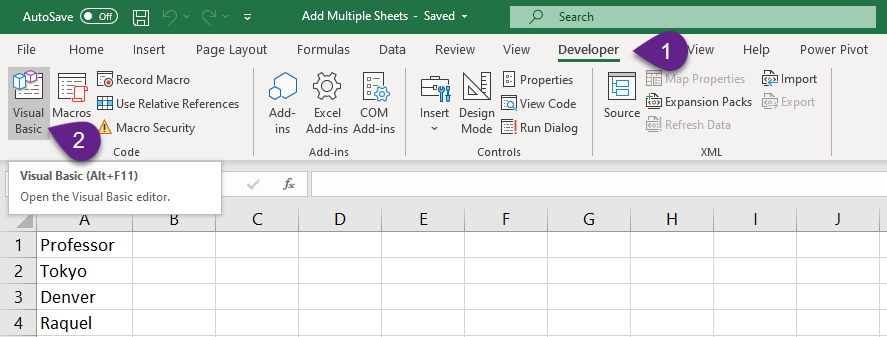
- Open the VBA editor. On the Developer tab, click Visual Basic, or press Alt + F11.
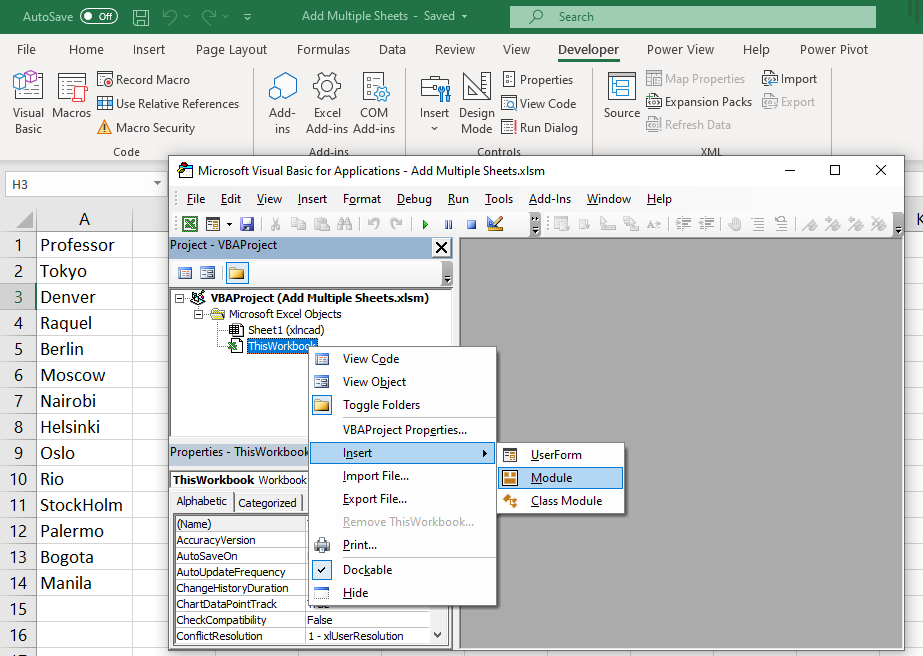
- Insert a module. In the Project pane on the left, right-click your workbook and choose Insert → Module.
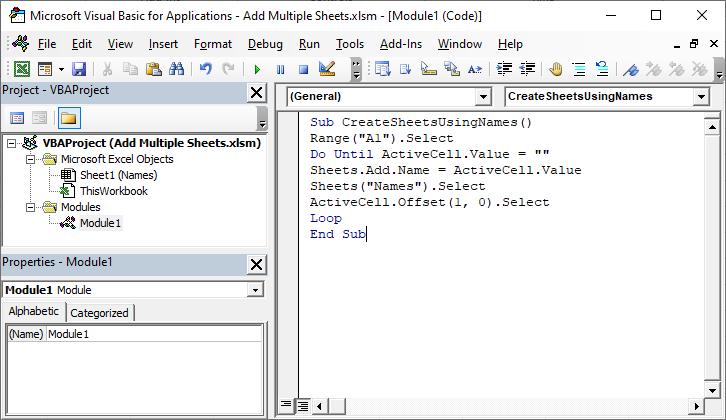
- Paste the code into the new module.
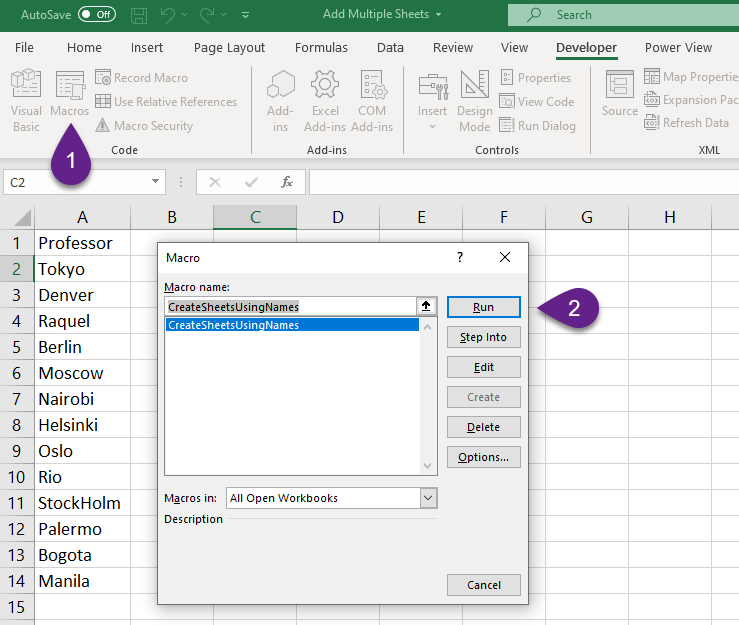
- Run it. Close the editor, click Macros on the Developer tab (or press Alt + F8), select the macro and click Run.
Save the file as .xlsm to keep the macro. A normal .xlsx workbook deletes macros when you save it.
52 ready-to-use Excel macros
Each link opens the full code with an explanation.
Worksheets (14)
- Add multiple worksheets
- Delete worksheets
- Hide and unhide worksheets
- Make a sheet very hidden
- Delete every sheet except the active one
- Protect and unprotect sheets with a password
- Create a list of worksheets
- Count the worksheets in a workbook
- Italicize a row on every worksheet
- Select the first or last worksheet
- Sort worksheets alphabetically
- Rename every worksheet
- Create a table of contents
- Delete blank worksheets
Rows, columns and cells (6)
- Insert rows
- Delete rows
- Insert and delete columns
- Hide and unhide rows and columns
- Select the first 1000 cells of column A
- AutoFit rows and columns
Text, data and formulas (9)
- Convert text to UPPER, lower or Proper case
- Join text in rows and columns
- Reverse text
- Convert numbers to words
- Split data into rows or columns
- Remove data validation
- Do maths on a selection
- Convert formulas to values
- Hide formulas in a worksheet
Highlighting (4)
- Highlight the largest and smallest numbers
- Highlight negative and positive values
- Highlight misspelled words
- Highlight cells containing specific text
Tables, PivotTables and charts (5)
- Create an Excel Table
- Create a PivotTable
- Delete PivotTables
- Resize all charts
- Save the selection as a picture
Workbooks and files (9)
- Import and export text files
- Save a worksheet as PDF
- List files and subfolders
- Close workbooks
- Group workbooks
- Create a workbook for every worksheet
- Save a copy with a timestamp
- Combine workbooks
- Delete files and folders
Messages and other apps (5)
- Message box and input box
- Text to speech
- Open the Data Form
- Open other Office apps from Excel
- Email the workbook through Outlook
Things to know before you run a macro
- There’s no Undo. Changes made by a macro can’t be reversed with Ctrl+Z, so save a copy of your file first.
- Macros are disabled by default. When you open a file with macros, click Enable Content in the yellow bar. Change the default in File → Options → Trust Center → Trust Center Settings → Macro Settings.
- Files downloaded from the internet are blocked. Excel blocks their macros completely. If you trust the file, right-click it in File Explorer, choose Properties, tick Unblock and click OK.
- Only run code you trust. Macros can change or delete files, so use code from sources you know.
- Use a macro in every workbook by saving it in your Personal Macro Workbook. In the Record Macro dialog, choose Store macro in: Personal Macro Workbook.
- Add a description when you create a macro, so you remember what it does months later.
Frequently asked questions
What’s the difference between a macro and VBA?
A macro is the set of steps that Excel runs. VBA is the language those steps are written in. Recorded macros are saved as VBA code too.
How do I enable macros in Excel?
Click Enable Content in the yellow security bar when you open the file. For files from the internet, unblock the file first in its Properties.
Can I undo a macro?
No. Ctrl+Z doesn’t reverse changes made by a macro. Save a backup before running one.
Why did my macro disappear when I saved?
The file was saved as .xlsx, which doesn’t keep macros. Save it as an Excel Macro-Enabled Workbook (.xlsm).
Do macros work on Mac and in Excel for the web?
VBA macros run in Excel for Windows and Excel for Mac. Excel for the web can’t run VBA. It uses Office Scripts instead.