The Excel IFS function checks several conditions in order and returns the result for the first one that is TRUE. It replaces long nested IF formulas.
test1 |
The first condition to check. |
|---|---|
value1 |
What to return if test1 is TRUE. |
test2, value2, ... optional |
More condition and result pairs, up to 127. |
Table of Contents
Basic example
To give each student a grade from their Maths score, list the limits from highest to lowest:
=IFS(C3>=90,"A",C3>=75,"B",C3>=60,"C",TRUE,"D") 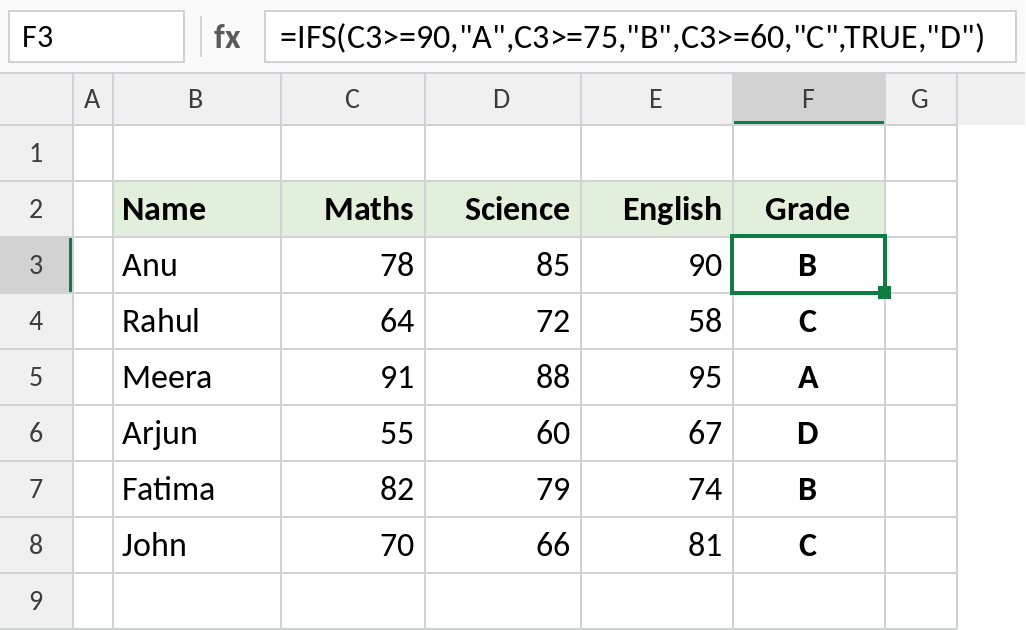
Anu scored 78. It’s not 90 or more, but it is 75 or more, so IFS returns B and stops checking. Arjun’s 55 fails every limit and falls through to TRUE,"D".
Why the final TRUE matters
IFS has no built-in “otherwise” result. Here is the same formula without the last TRUE,"D" pair:
=IFS(C6>=90,"A",C6>=75,"B",C6>=60,"C") 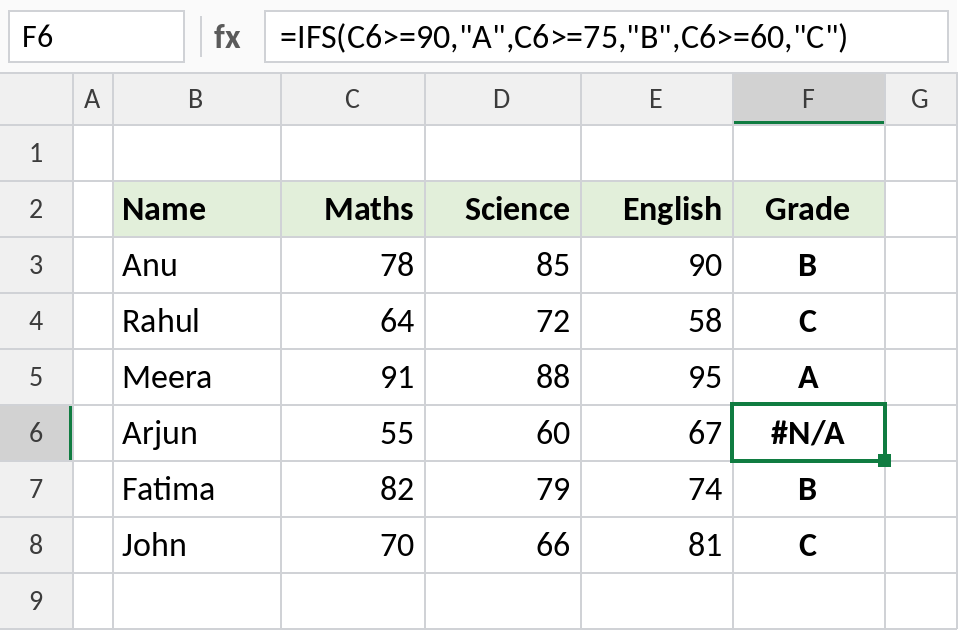
Arjun’s 55 doesn’t meet any test, so IFS returns #N/A. Ending with TRUE and a value acts as the catch-all, because TRUE is always true.
Return numbers, not just text
IFS can return numbers too. This gives a commission rate based on the size of each sale:
=IFS(D4>=800,10%,D4>=500,5%,TRUE,0) 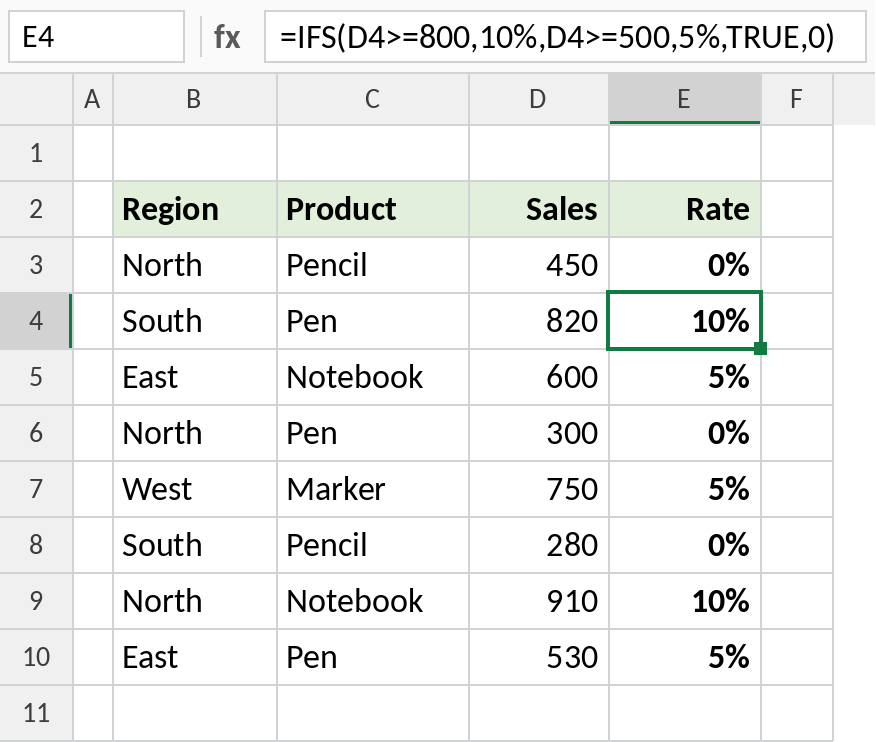
820 is 800 or more, so it gets 10%. 600 gets 5% and 450 gets 0%. Multiply by the sale, =D4*E4, to get the commission amount.
IFS vs nested IF vs XLOOKUP
| Approach | Grade formula | Best for |
|---|---|---|
| Nested IF | =IF(C3>=90,"A",IF(C3>=75,"B",IF(C3>=60,"C","D"))) |
Older Excel versions |
| IFS | =IFS(C3>=90,"A",C3>=75,"B",C3>=60,"C",TRUE,"D") |
3 to 6 bands, easy to read |
| XLOOKUP | =XLOOKUP(C3,{0,60,75,90},{"D","C","B","A"},,-1) |
Many bands, or limits kept in a table |
Notes
- Order matters. IFS returns the first TRUE result, so test from the strictest condition down.
- Add
TRUEwith a default value as the last pair to avoid#N/A. - IFS is not available in Excel 2016 or earlier. Opening the file there shows
#NAME?. - To match one value against exact options, such as region codes, SWITCH is often shorter.
Common errors
| Problem | Cause | Fix |
|---|---|---|
#N/A |
No test is TRUE and there’s no default | End with TRUE, and a default value |
| Everyone gets the same grade | A loose condition comes first, such as C3>=60 before C3>=90 |
Order tests from highest to lowest |
#NAME? |
The file is opened in Excel 2016 or earlier | Use nested IF or XLOOKUP instead |
| Formula not accepted | A test without a matching value | Check every test has a value after it |
Practice file
All three examples with working formulas.