To compare two columns in Excel, decide first what “match” means: the same value in the same row, or the value appearing anywhere in the other column. Each needs a different formula.
Row by row
To check whether each row holds the same value in both columns, compare them directly:
=IF(B3=C3,"Match","Different")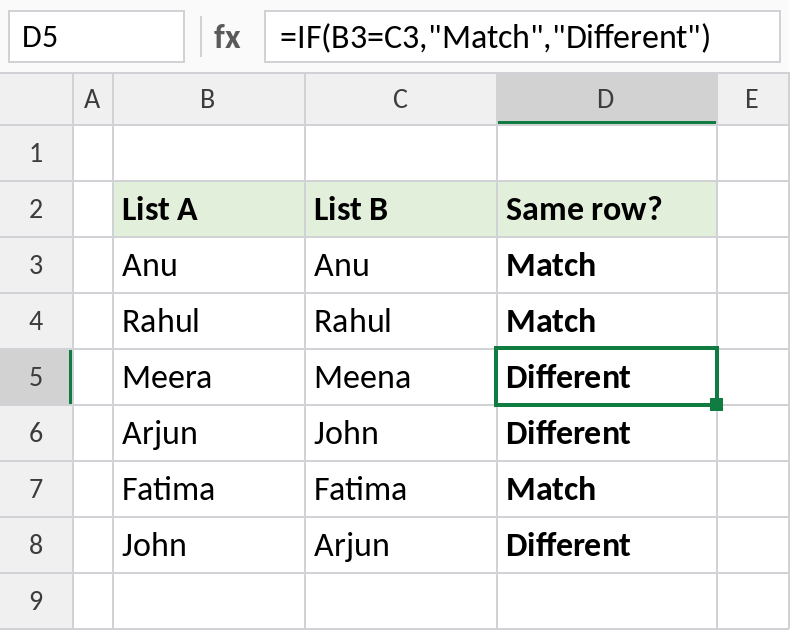
Row 5 has Meera and Meena, so it shows Different. Rows 6 and 8 also differ, even though both names appear in both lists.
How the formula works
COUNTIF($C$3:$C$8,B3)counts how many times the List A value appears in List B.>0turns that count into TRUE when it appears at least once.- IF shows Yes or No. The
$signs keep List B fixed as you copy the formula down.
Anywhere in the other column
To check whether each name in List A appears anywhere in List B, count it with COUNTIF:
=IF(COUNTIF($C$3:$C$8,B3)>0,"Yes","No")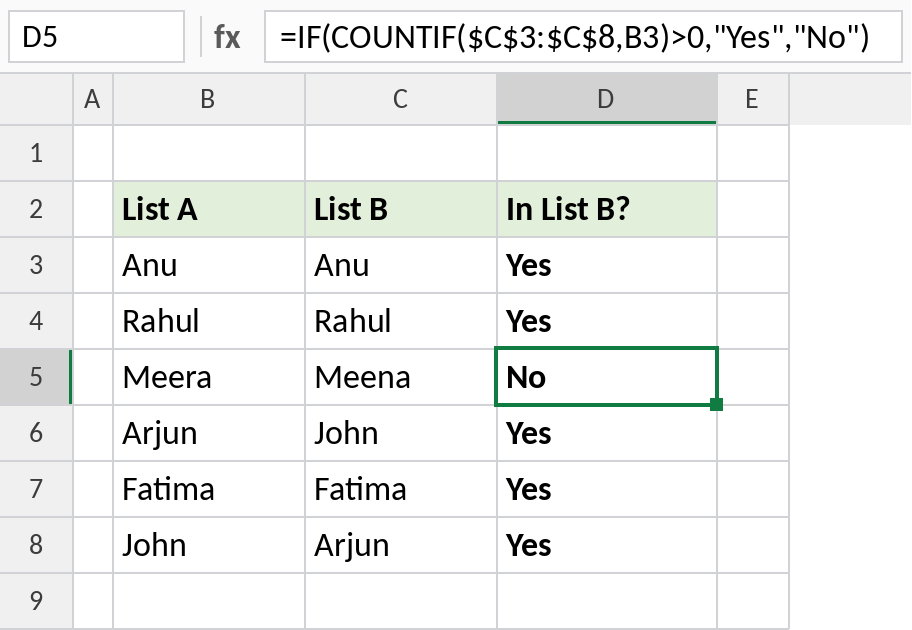
Arjun and John are in List B, just on different rows, so they show Yes. Only Meera shows No.
An exact, case-sensitive match
The = comparison ignores upper and lower case. EXACT doesn’t, and it also catches trailing spaces:
=EXACT(B3,C3)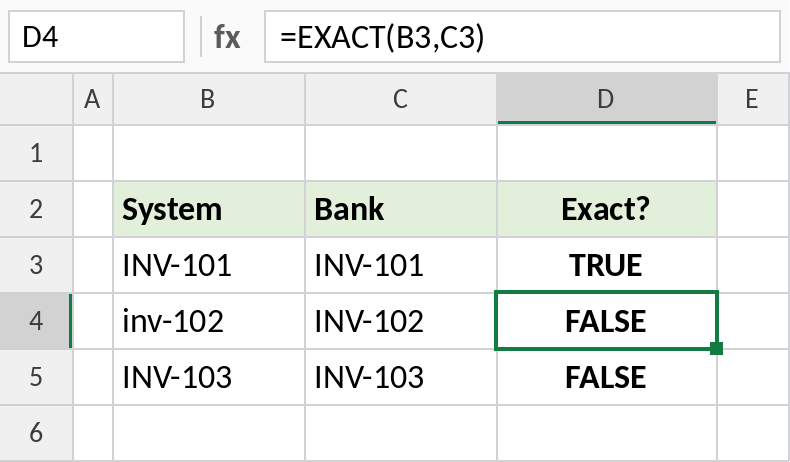
inv-102 isn’t exactly INV-102, so it’s FALSE. INV-103 fails because the bank copy has a space at the end.
Other ways to compare
| Method | Shows |
|---|---|
=B3=C3 |
TRUE or FALSE for each row |
=ISNUMBER(MATCH(B3,$C$3:$C$8,0)) |
TRUE if found anywhere, like COUNTIF |
=XLOOKUP(B3,$C$3:$C$8,$C$3:$C$8,"Missing") |
The matching value, or Missing |
| Home → Conditional Formatting → Duplicate Values | Highlights matches in both columns |
To list only the values missing from the other column, see find missing values between two lists.
Notes
- The
=comparison and COUNTIF are not case-sensitive. Use EXACT when case matters. - Extra spaces make values look the same but fail to match. Clean them with TRIM first.
- Numbers stored as text don’t match real numbers. Convert them with VALUE.
Common errors
| Problem | Cause | Fix |
|---|---|---|
| Values look equal but don’t match | Extra spaces | Use TRIM on both columns |
| Numbers don’t match | One side stored as text | Convert with VALUE or Text to Columns |
| Everything shows No | List B range not locked with $ | Use $C$3:$C$8 |
Practice file
All three comparisons in one workbook.