The Google Sheets SPLIT function breaks text into separate cells at a delimiter, such as names at the space or addresses at the comma. Watch for the split_by_each trap below.
PurposeSplit text into columns
ReturnsEach part in its own cell
Available inGoogle Sheets (web, Android and iPhone). Excel 365 uses TEXTSPLIT
text |
The text to split. |
|---|---|
delimiter |
The character or characters to split at, in quotes. |
split_by_each optional |
Default TRUE: split at each character of the delimiter. Use FALSE to split only at the whole delimiter. |
remove_empty_text optional |
Default TRUE: drop empty parts. FALSE keeps them as blank cells. |
Basic example
=SPLIT(A2, " ")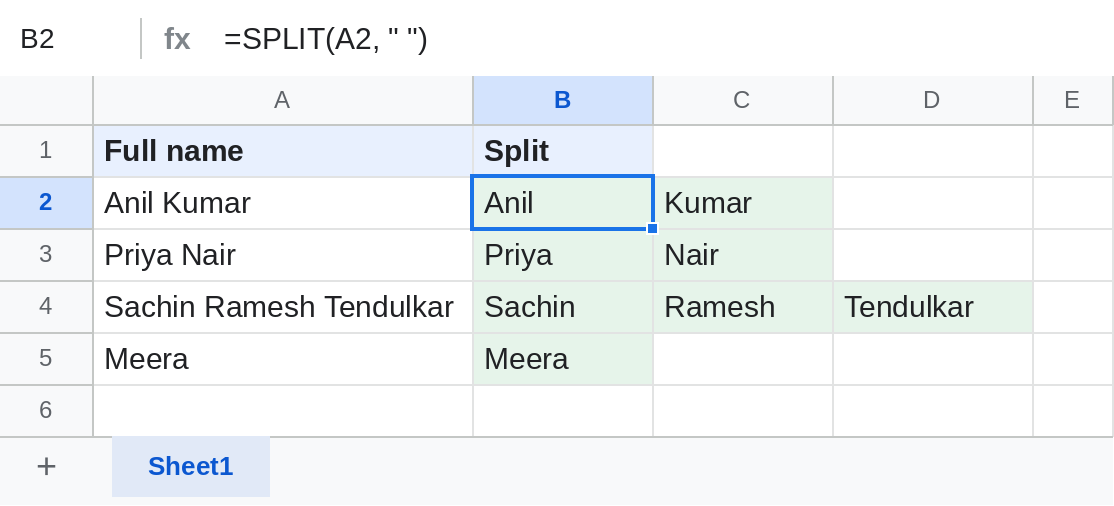
Sachin Ramesh Tendulkar fills three cells; Meera stays in one.
The split_by_each trap
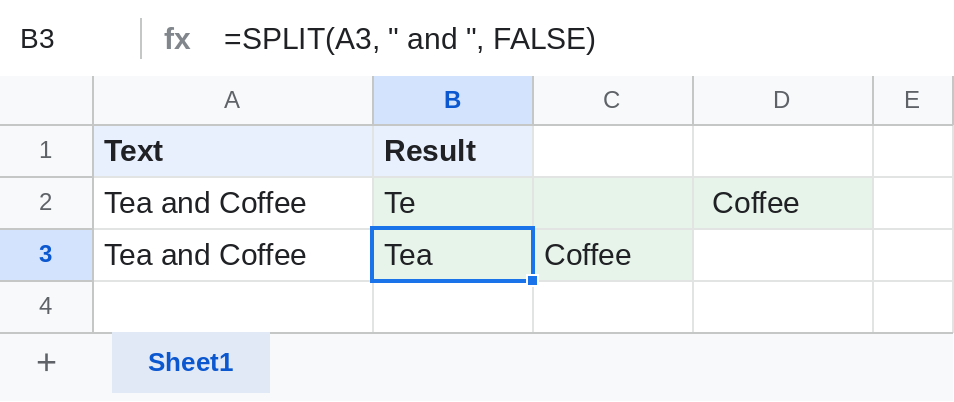
Row 2 uses =SPLIT(A2, " and "). Because split_by_each is TRUE, it splits at every space, a, n and d, giving Te, a space and Coffee. Row 3 adds FALSE, so only the whole word and is used. Use FALSE whenever the delimiter has more than one character.
Split addresses
=SPLIT(A2, ", ", FALSE)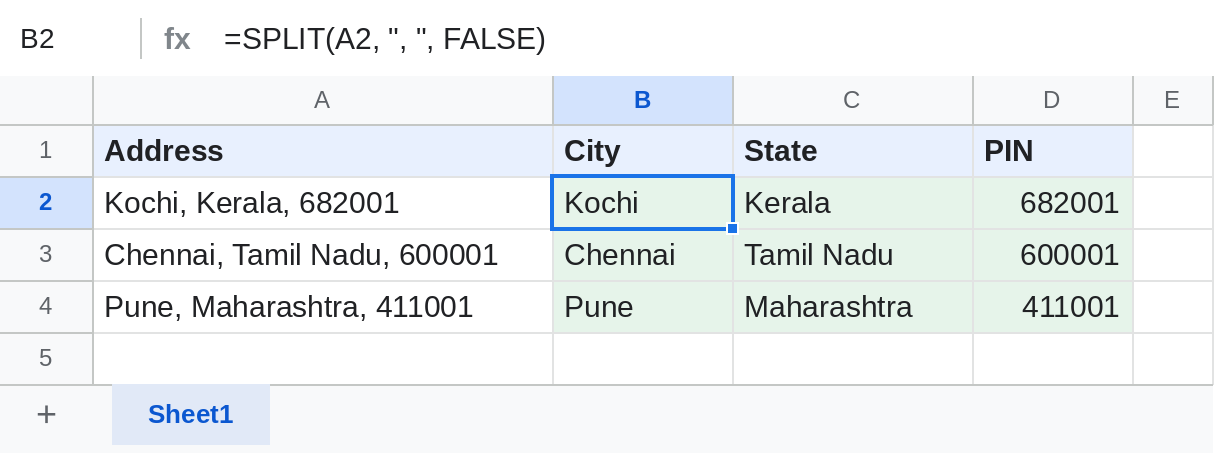
PIN codes come out as numbers. For a whole column, wrap it: =ARRAYFORMULA(SPLIT(A2:A4, ", ", FALSE)).
Keep or drop empty parts
| Text | Formula | Result |
|---|---|---|
| red;green;;blue | =SPLIT(A2, ";") |
red | green | blue |
| red;green;;blue | =SPLIT(A2, ";", TRUE, FALSE) |
red | green | (blank) | blue |
Notes
- Numbers are converted, so 00123 becomes 123. To keep leading zeros, use Data → Split text to columns on a column formatted as plain text.
- Without a formula: Data → Split text to columns splits in place.
- Excel's TEXTSPLIT splits at the whole delimiter by default; SPLIT doesn't.
Common errors
| Problem | Cause | Fix |
|---|---|---|
| Strange pieces like Te | split_by_each is TRUE with a multi-character delimiter | Add FALSE as the third argument |
| #REF! | Cells to the right have data | Clear them |
| Leading zeros lost | Parts that look like numbers are converted | Use the menu option with plain-text format |
Practice file
Names, phrases and addresses with all SPLIT examples. Upload to Google Drive and open with Google Sheets.