The Google Sheets SUMIF function adds the numbers that meet one condition, such as all sales from Kochi or every order above 10,000.
PurposeSum cells that meet one condition
ReturnsThe total of the matching cells
Available inGoogle Sheets (web, Android and iPhone), Excel
range |
The cells to test. |
|---|---|
criterion |
The condition, such as "Kochi", ">10000" or a cell. |
sum_range optional |
The cells to add. Left out, SUMIF adds the cells in range. |
Basic example
=SUMIF(B2:B9, F2, D2:D9)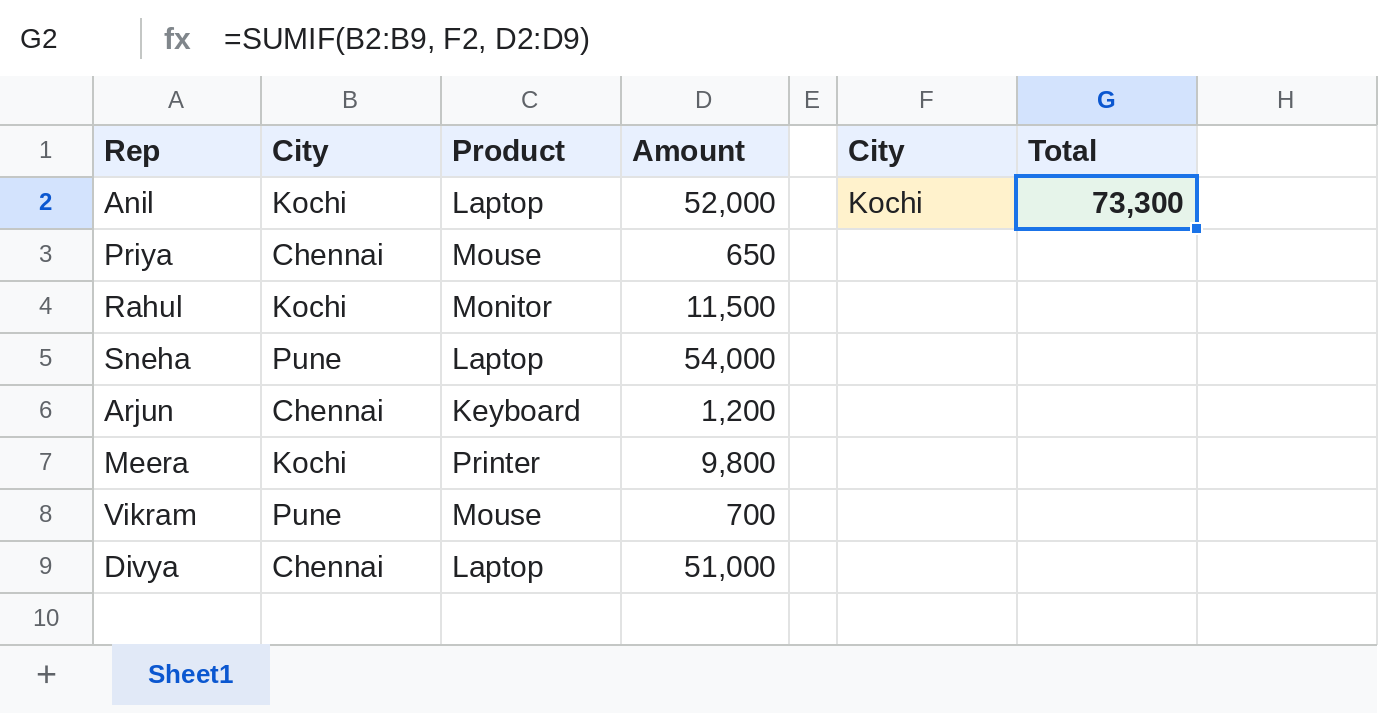
SUMIF checks B2:B9 for Kochi (in F2) and adds the matching amounts: 52,000 + 11,500 + 9,800 = 73,300.
Total above a number
=SUMIF(D2:D9, ">"&F2)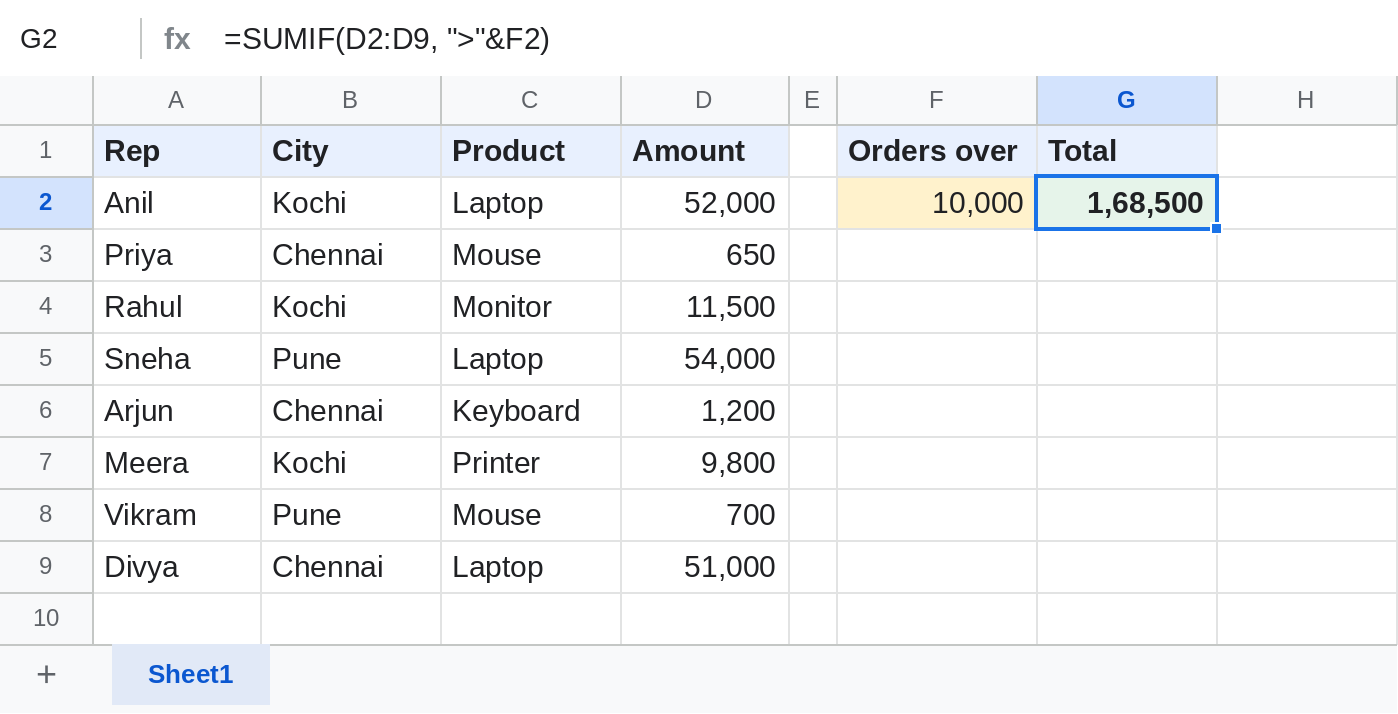
Join the operator to the cell with &. The tested and added cells are the same, so sum_range is left out.
Wildcards
=SUMIF(C2:C9, F2, D2:D9)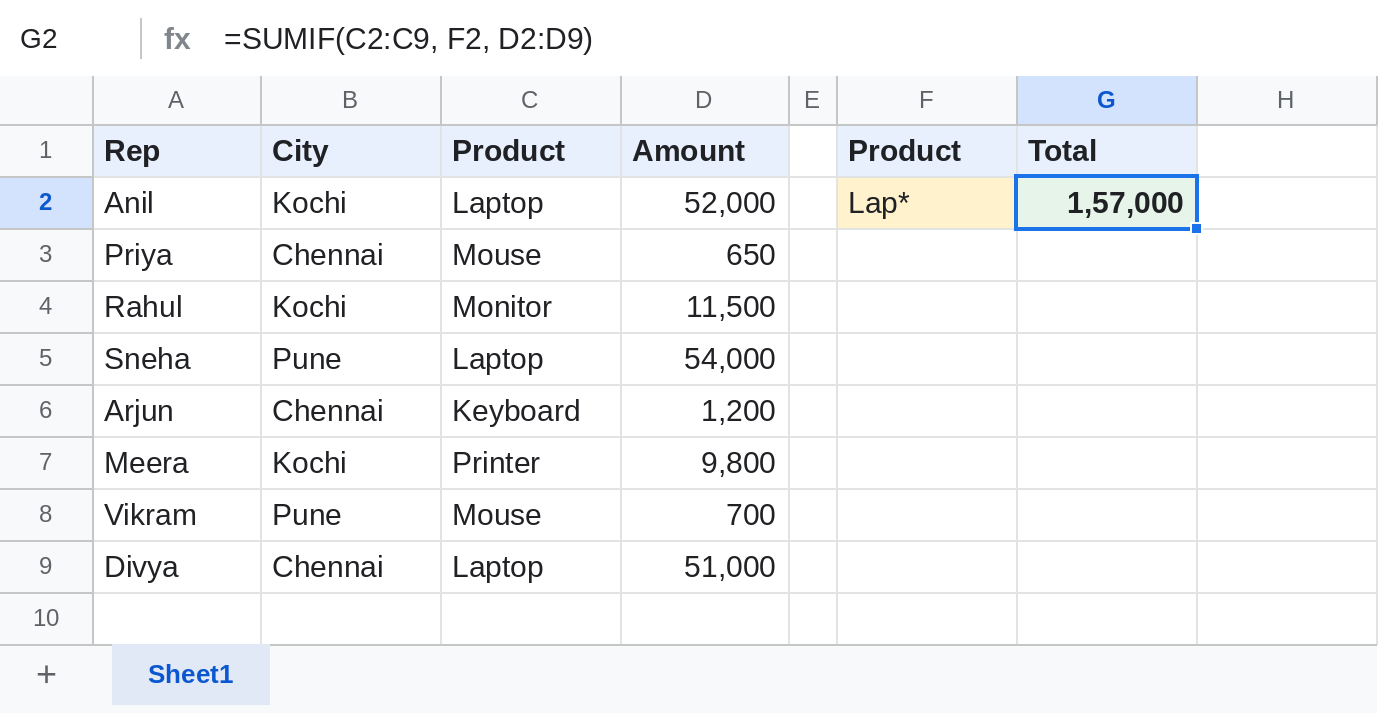
Lap* in F2 matches any product starting with Lap: 1,57,000.
Everything except one value
=SUMIF(B2:B9, "<>"&F2, D2:D9)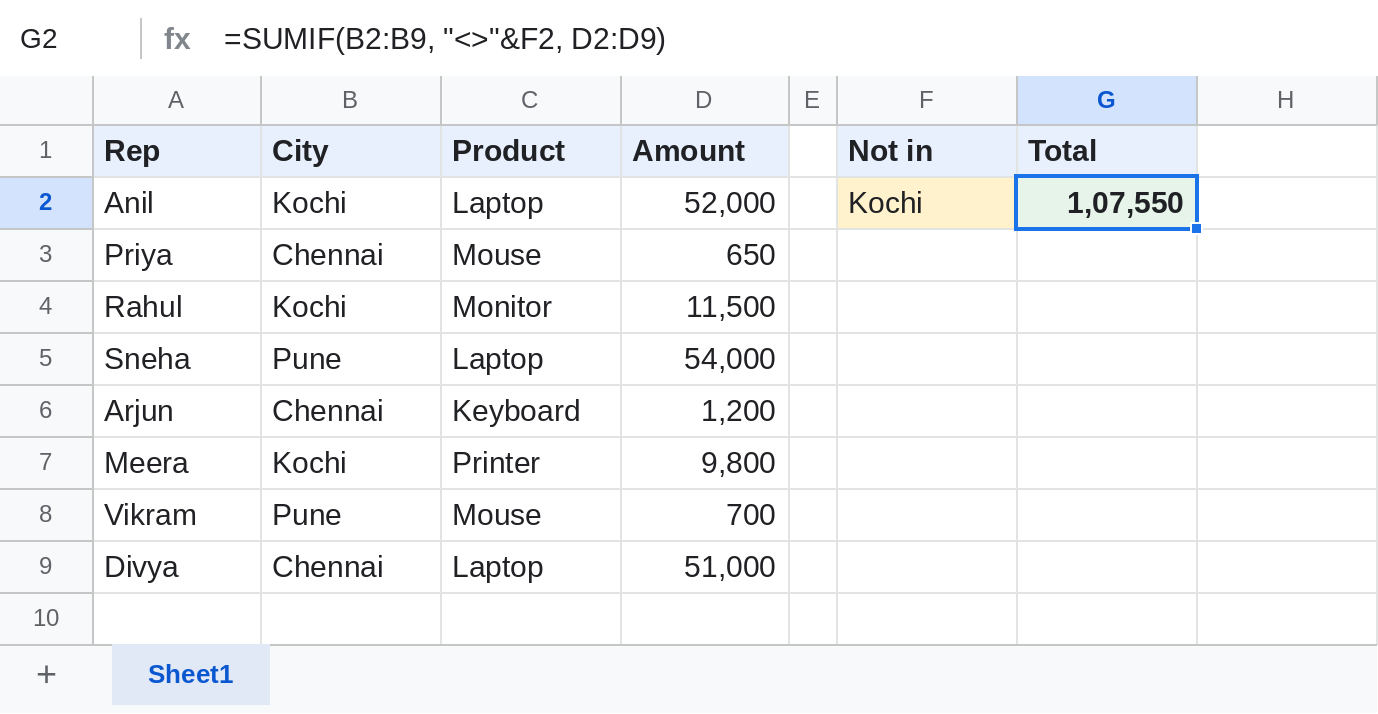
Criterion cheat sheet
| Criterion | Adds rows where |
|---|---|
"Kochi" |
the value is Kochi (case doesn't matter) |
"<>Kochi" |
the value is not Kochi |
">=10000" |
the number is 10,000 or more |
"Lap*" |
the text starts with Lap |
"*top*" |
the text contains top |
"" |
the cell is blank |
">="&DATE(2026,4,1) |
the date is on or after 1 April 2026 |
Notes
- SUMIF takes one condition. For more, use SUMIFS:
=SUMIFS(D2:D9, B2:B9, "Kochi", C2:C9, "Laptop"). - Numbers stored as text in sum_range are ignored.
Common errors
| Problem | Cause | Fix |
|---|---|---|
| Result is 0 | No match, often extra spaces or text numbers | Clean with TRIM, convert with VALUE |
| Formula parse error | Operator without quotes, like >10000 |
Write ">10000" |
| Wrong total | range and sum_range are different sizes | Make them cover the same rows |
Practice file
The sales table with all four SUMIF examples. Upload to Google Drive and open with Google Sheets.