The Excel DAYS function returns the number of days between two dates. It’s the same as subtracting one date from the other, but reads more clearly.
PurposeDays between two dates
ReturnsA number
Available inExcel 2013 and later, Excel for the web, Google Sheets
end_date |
The later date. It comes first. |
|---|---|
start_date |
The earlier date. |
Table of Contents
Basic example
Put the end date first, then the start date:
=DAYS(D3,C3)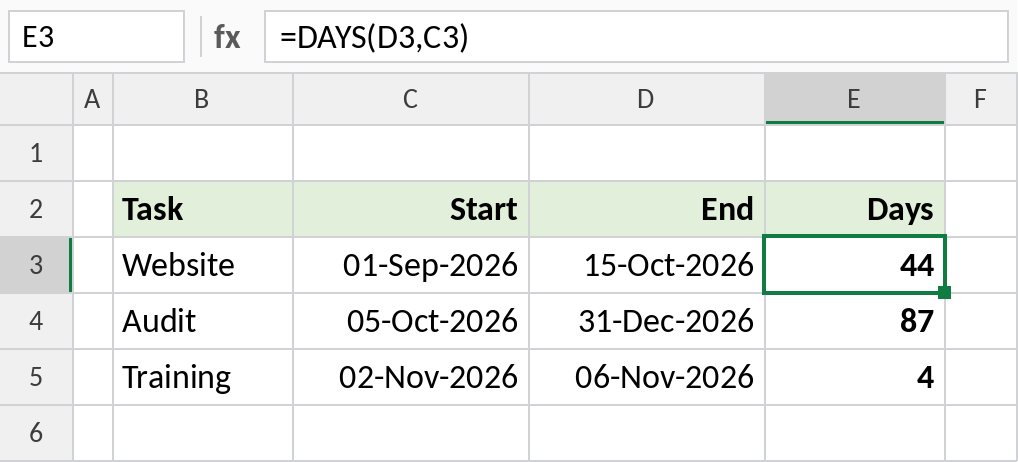
01-Sep-2026 to 15-Oct-2026 is 44 days. Swap the dates and you get -44.
Count both the start and end day
DAYS counts the gap between dates. For durations where both days count, such as a training course, add 1:
=DAYS(D5,C5)+1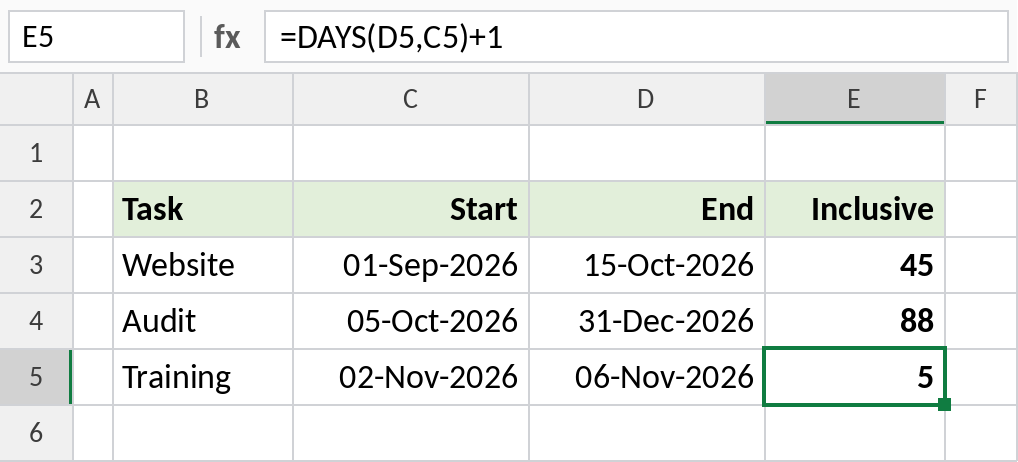
Training from Monday 02-Nov to Friday 06-Nov is 5 days, not 4.
Days overdue
Compare each due date with a reference date. MAX stops invoices that aren’t due yet from showing negative numbers:
=MAX(DAYS($G$2,C3),0)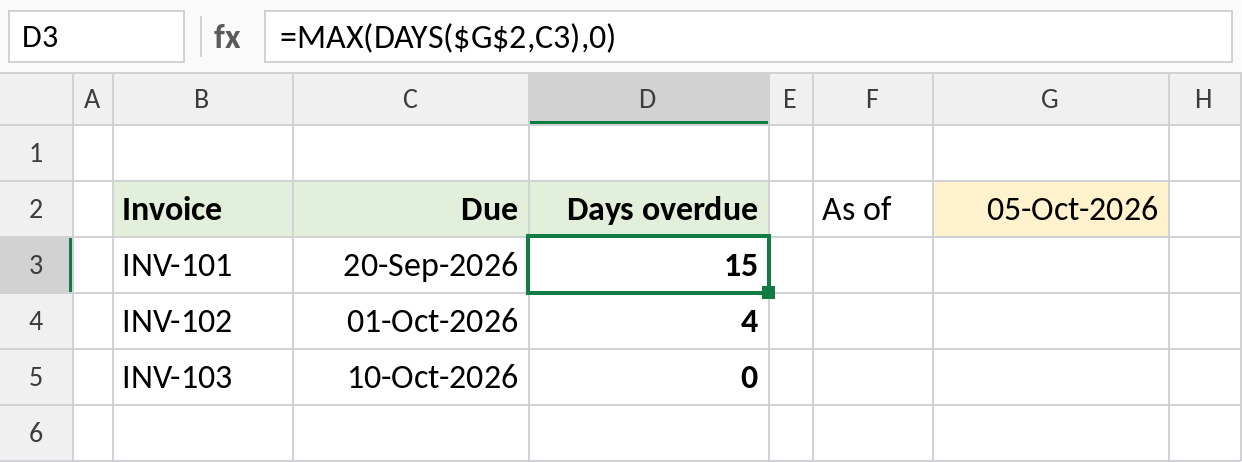
INV-101 was due on 20-Sep, so on 05-Oct it is 15 days overdue. Use TODAY() in place of G2 to update daily.
DAYS vs other date functions
| Formula | Returns |
|---|---|
=DAYS(D3,C3) |
Calendar days between the dates |
=D3-C3 |
The same, as long as the cell is formatted as a number |
| NETWORKDAYS | Working days only |
| DATEDIF | Complete months or years |
Notes
- The end date comes first. Reversing them gives a negative number.
- DAYS also accepts dates written as text, such as
"15-Oct-2026". - Times are ignored: only whole days are counted.
Common errors
| Problem | Cause | Fix |
|---|---|---|
| Negative result | Dates in the wrong order | Put the later date first, or wrap in ABS |
#VALUE! |
Text that isn’t a valid date | Check the date format |
| Result shown as a date | Cell formatted as a date | Format it as Number |
Practice file
All three examples plus the comparison in a cheat sheet.