The Google Sheets UNIQUE function lists each value once, removing duplicates without touching the original data. It can also return only the values that appear exactly once.
PurposeRemove duplicates with a formula
ReturnsThe distinct values or rows
Available inGoogle Sheets (web, Android and iPhone), Excel 365
range |
The list or table. |
|---|---|
by_column optional |
TRUE to compare columns instead of rows. Default FALSE. |
exactly_once optional |
TRUE to return only values that appear once. Default FALSE. |
Basic example
=UNIQUE(A2:A8)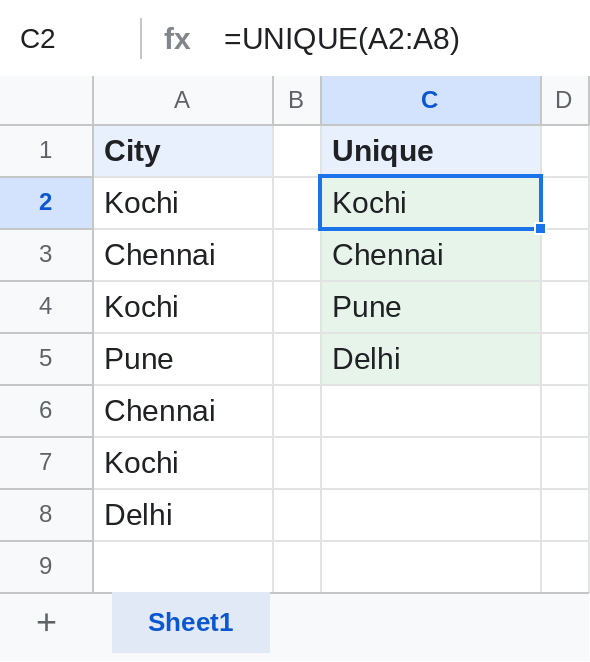
Values appear in the order they're first found.
Values that appear only once
=UNIQUE(A2:A8, FALSE, TRUE)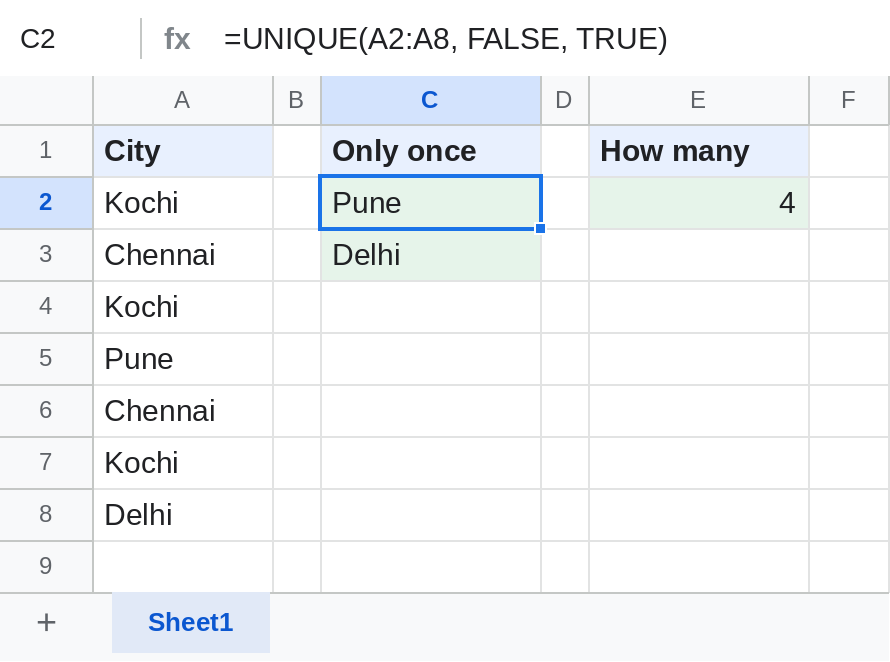
Only Pune and Delhi occur once. In E2, =COUNTUNIQUE(A2:A8) counts the different cities: 4. COUNTUNIQUE is a Google Sheets function; in Excel use =COUNTA(UNIQUE(A2:A8)).
Sorted unique list
=SORT(UNIQUE(A2:A8))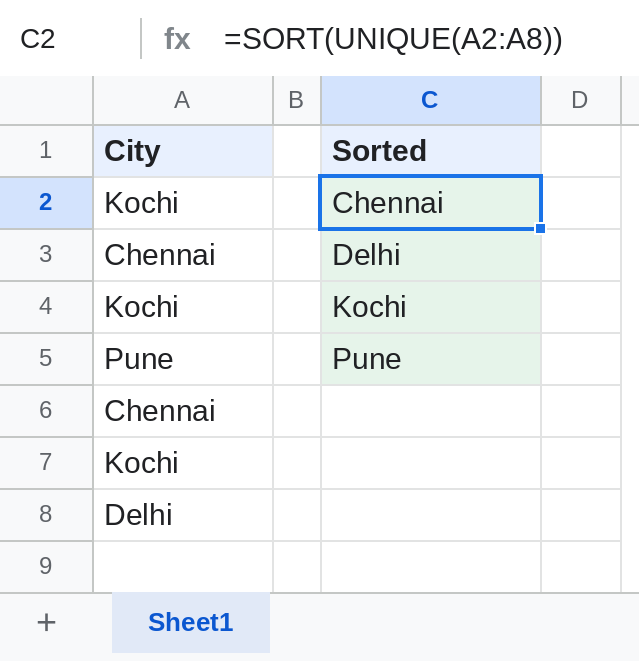
Handy as the source for a drop-down list that grows as new values are added.
Notes
- With several columns,
=UNIQUE(A2:C100)removes rows where every column repeats. - To delete duplicates permanently instead, use Data → Data cleanup → Remove duplicates.
- Extra spaces make values look the same but count as different: clean them with TRIM first.
Common errors
| Problem | Cause | Fix |
|---|---|---|
| Duplicates still show | Extra spaces or different spellings | =UNIQUE(ARRAYFORMULA(TRIM(A2:A8))) |
| A blank row in the result | The range includes empty cells | =UNIQUE(FILTER(A2:A, A2:A<>"")) |
| #REF! | Cells below have data | Clear them |
Practice file
The city list with all three UNIQUE examples and COUNTUNIQUE. Upload to Google Drive and open with Google Sheets.