To freeze results so they don’t change, or to send a file without your formulas, replace the formulas with their values. The quickest way in Microsoft 365 is Ctrl + C, then Ctrl + Shift + V.
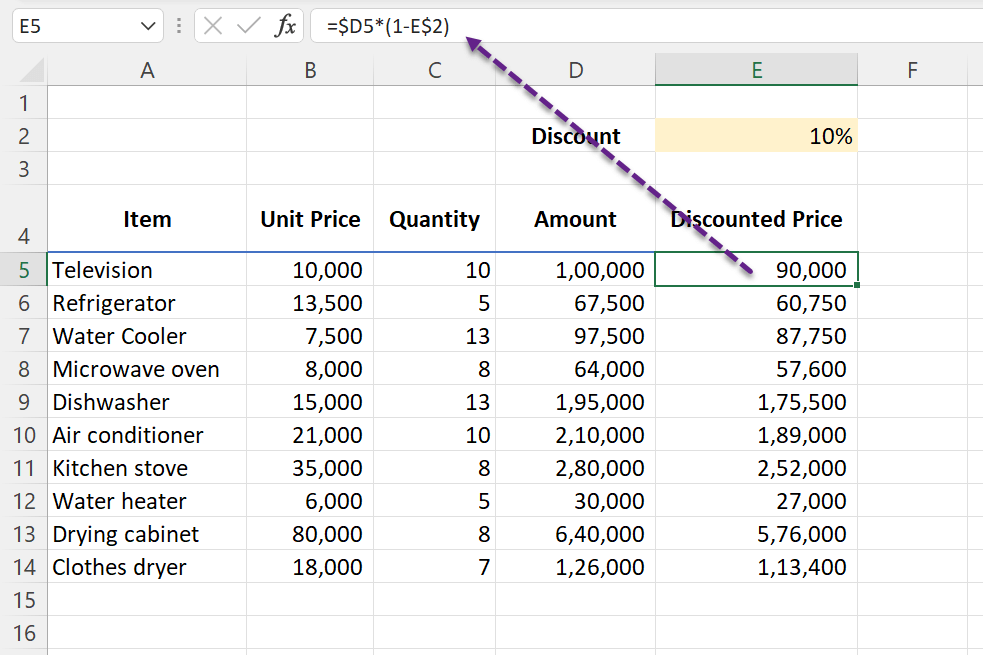
The data
Columns D and E contain formulas. The goal is to keep the numbers and lose the formulas.
1. Paste as values
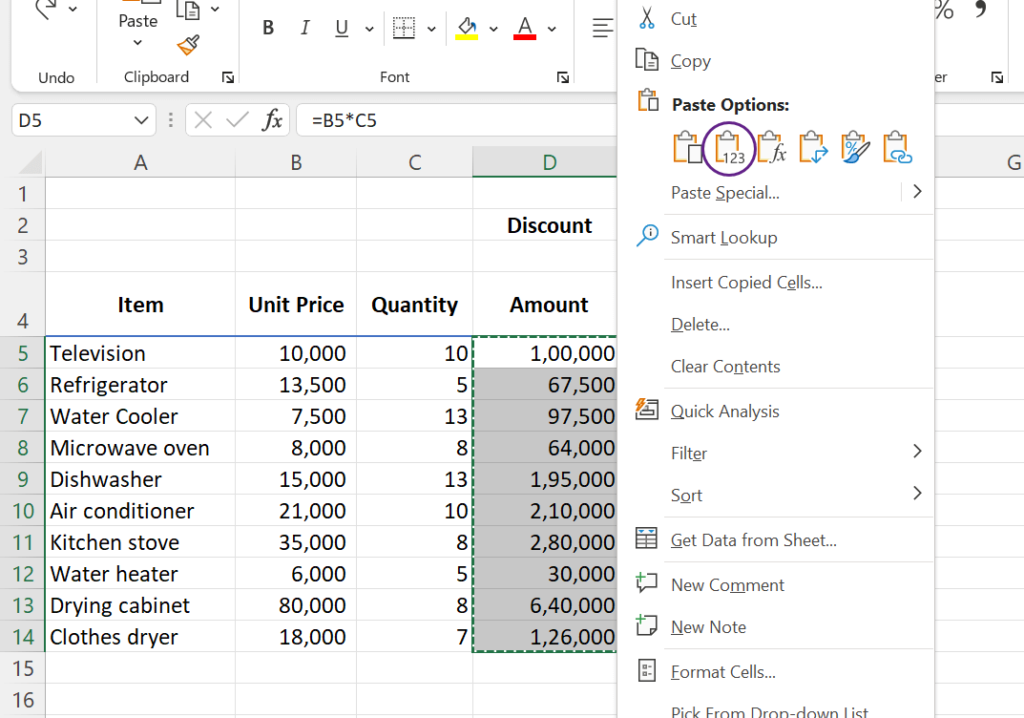
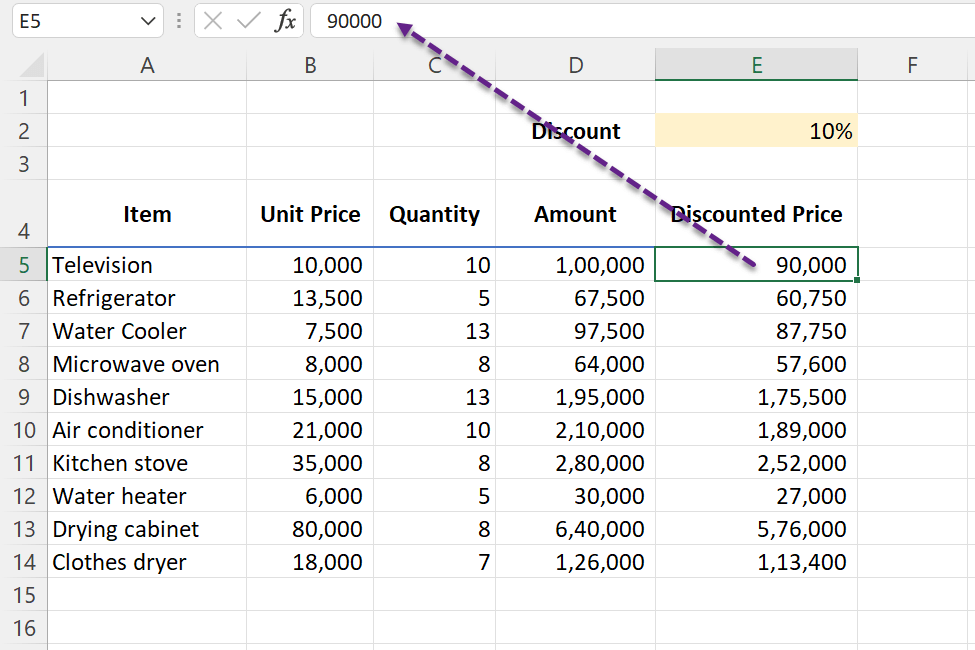
Copy the cells, right-click the first cell of the same range, and choose the Values icon (123) under Paste Options.
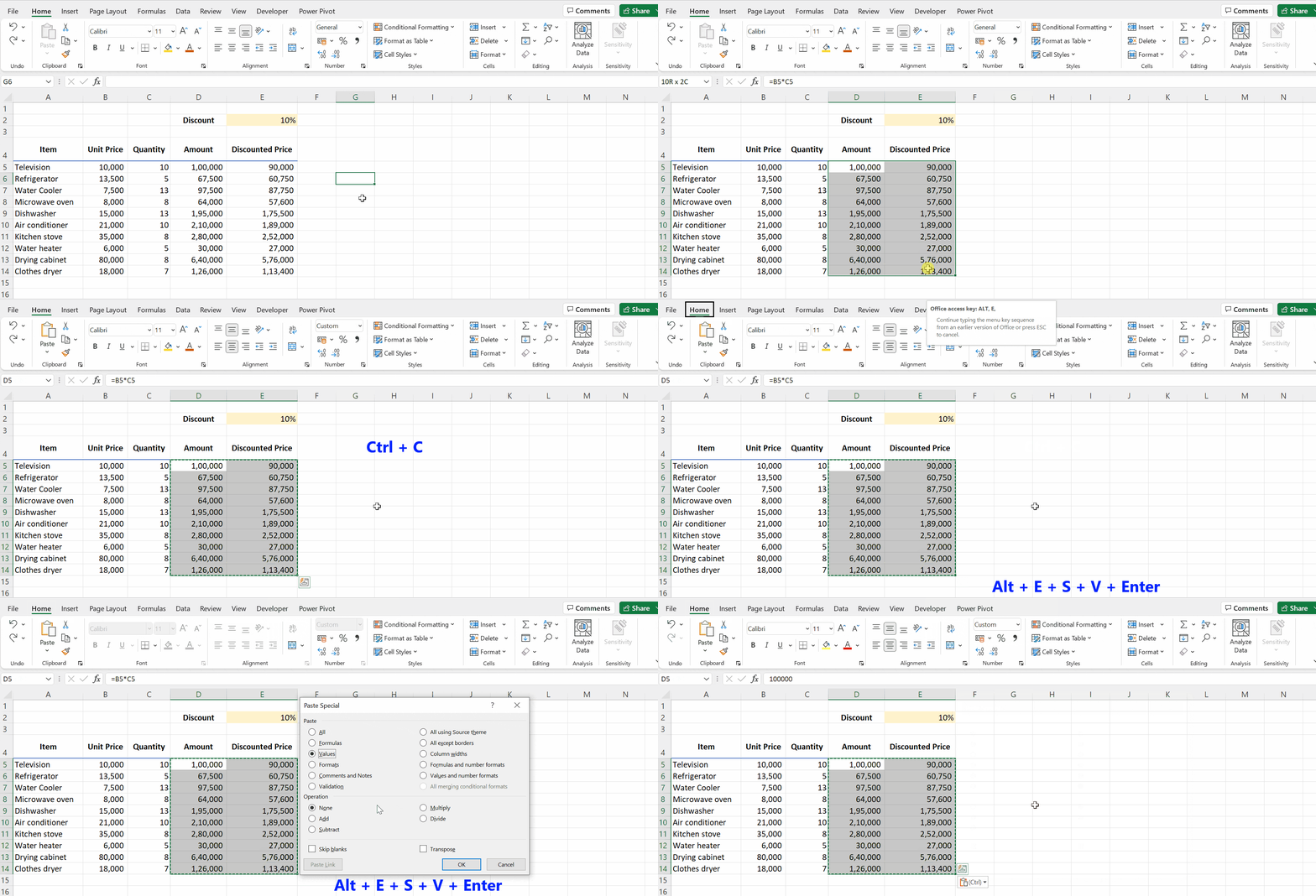
2. Keyboard shortcuts
| Shortcut | Works in |
|---|---|
| Ctrl + C, then Ctrl + Shift + V | Microsoft 365 (2022 and later) |
| Ctrl + C, then Alt, H, V, V | Excel 2010 and later |
| Ctrl + C, then Alt, E, S, V, Enter | All versions (legacy menu keys) |
3. Right-drag trick
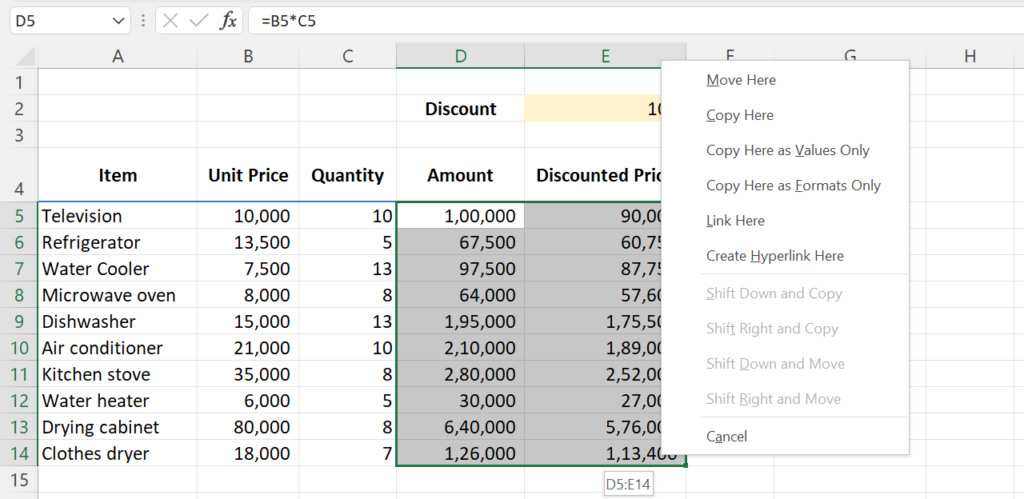
Select the cells, right-click the selection border, drag slightly away and back, release, and choose Copy Here as Values Only.
4. Quick Access Toolbar button
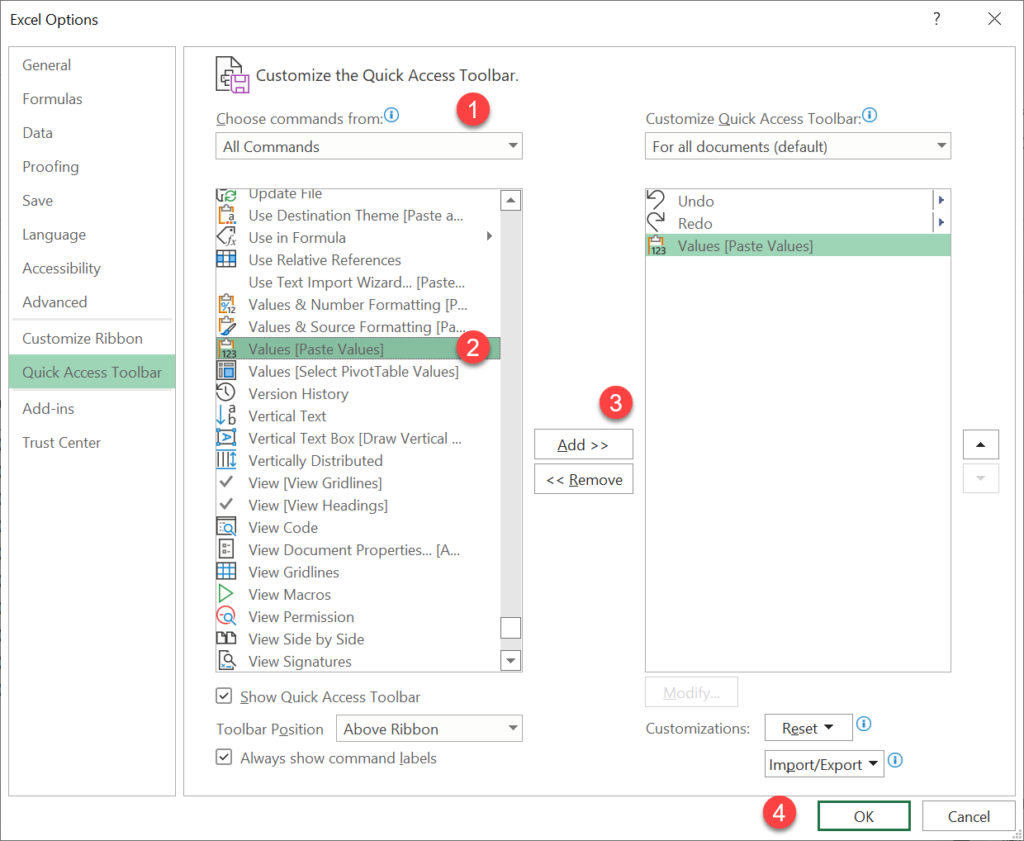
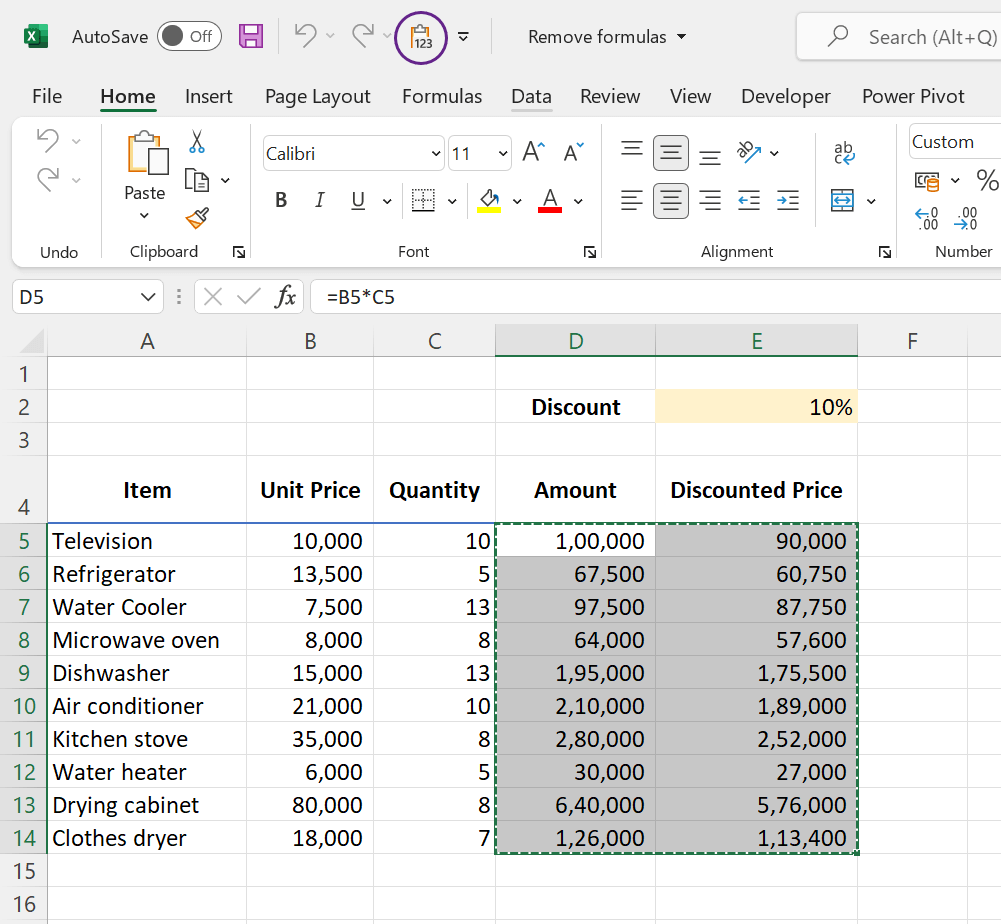
Right-click the Quick Access Toolbar → Customize, choose All Commands, add Paste Values, and click OK. It’s one click from then on, and Alt + a number selects it from the keyboard.
5. Macro
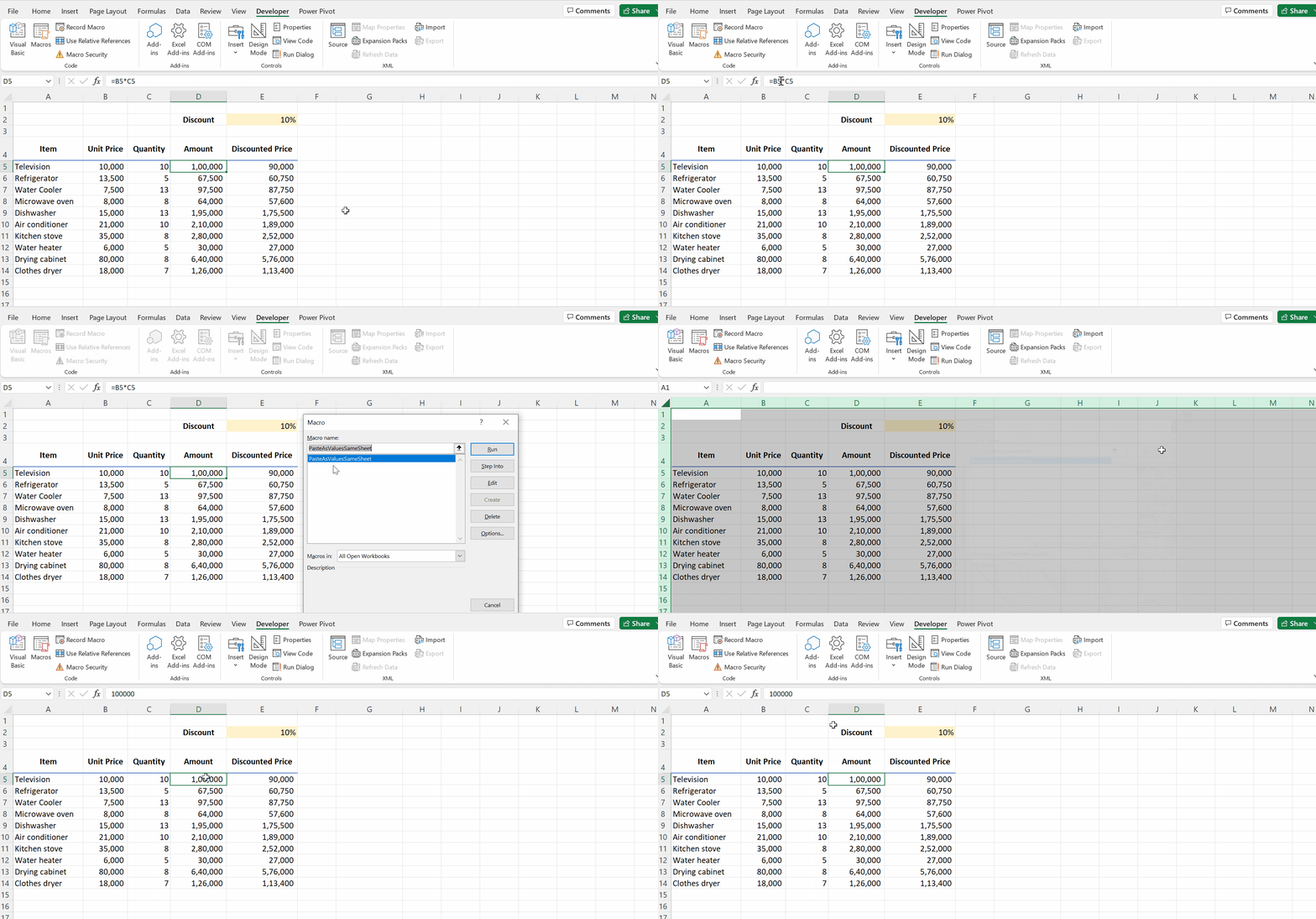
This converts every formula on the active sheet to its value without using the clipboard:
Sub FormulasToValues()
    ActiveSheet.UsedRange.Value = ActiveSheet.UsedRange.Value
End SubMore versions, such as selection only or every sheet, are on the convert formulas to values macro page.
6. Keep the formulas, hide them
If you only want to stop others seeing the formulas, don’t delete them. Hide them and protect the sheet instead: see hide formulas.
Before you paste values
- Save a copy first. After saving and closing, the formulas can’t be recovered.
- Dynamic array results (spills) can be converted the same way. Select the whole spill range first.
- To check which cells still have formulas, use Ctrl + {`} to show formulas.