Excel can show any date in the Hijri or Umm al-Qura calendar without changing the date itself. Use a number format to display it, or the TEXT function to write the Hijri date into another cell, next to the Gregorian one.
Method 1: Show a date in Hijri with Format Cells
- Right-click the date cell and choose Format Cells (Ctrl + 1).
- On the Number tab, choose Date.
- Set Locale (location) to Arabic (Saudi Arabia) and Calendar type to Hijri, then click OK.
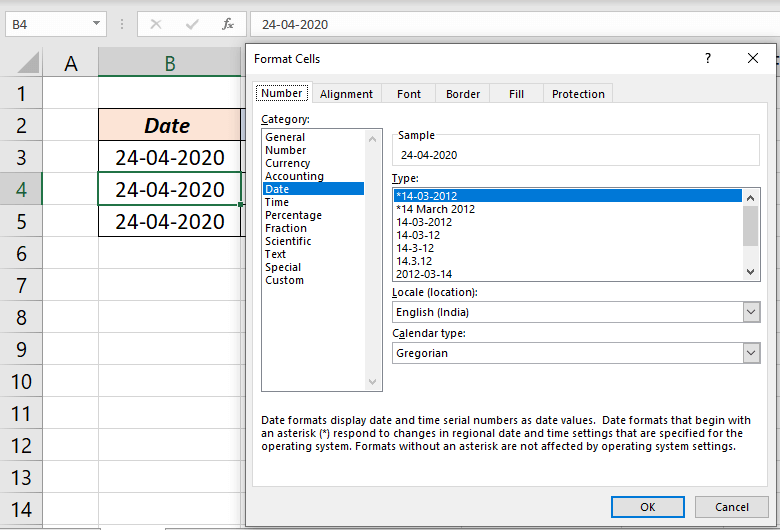
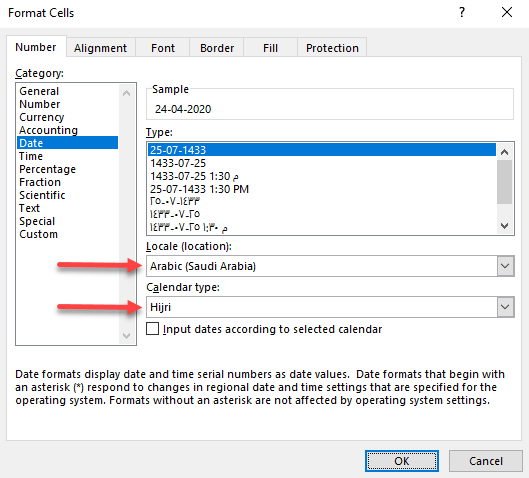
The cell now shows the Hijri date. The value underneath is still the same date, so formulas and sorting keep working.
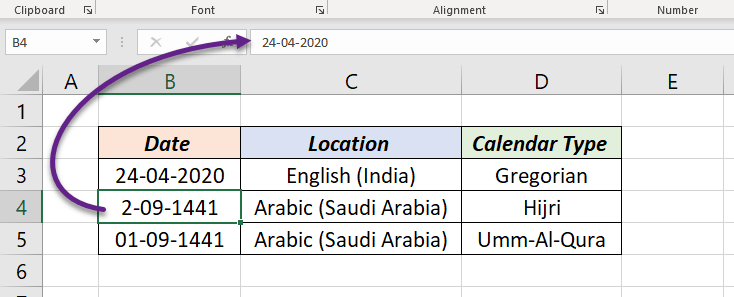
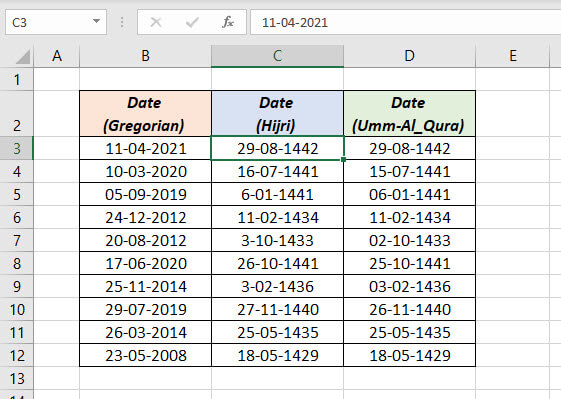
Choose Umm al-Qura as the calendar type instead to use the official Saudi calendar.
Method 2: Hijri date in another cell with TEXT
To keep the Gregorian date in column A and show the Hijri date in column B, use the B2 calendar code in TEXT:
=TEXT(A2,"B2dd/mm/yyyy")B2 switches the format to the Hijri calendar, and B1 switches back to Gregorian. The result is text, so use it for display and keep the original date for calculations.
Hijri back to Gregorian
If the Hijri date is a real Excel date shown with a Hijri format (Method 1), converting back is just formatting: select the cell, press Ctrl + 1 and choose a normal date format such as dd-mmm-yyyy. The date underneath never changed.
To see both side by side, use =A2 in the next cell and give that cell a Gregorian format.
Things to know
- Excel’s Hijri option is calculated with the Kuwaiti algorithm. It can differ by a day or two from dates announced by moon sighting.
- Umm al-Qura follows the official calendar of Saudi Arabia and is the better choice for Saudi documents.
- Hijri formats work for dates from 1 January 1900, Excel’s earliest date.
Frequently asked questions
Why is my Hijri date one day different from the official date?
Excel calculates Hijri dates; official dates often depend on moon sighting. Try the Umm al-Qura calendar, or adjust by one day if your local authority announced a different date.