An Excel formula is an instruction that calculates a value in a cell. Every formula starts with an equals sign (=), and when the cells it uses change, the result updates automatically.
Your first formula
Click a cell, type =, then the calculation, and press Enter. This formula adds 50 to the value in B3:
=B3+50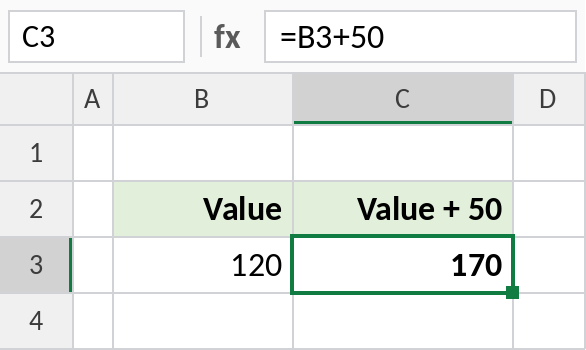
The cell shows the result, 170, and the formula bar shows the formula. Change B3 to 200 and the result changes to 250 straight away. That’s the difference between a formula and a typed number.
Calculate with cell references
Formulas usually point to other cells instead of typing numbers in. This multiplies quantity by price:
=C3*D3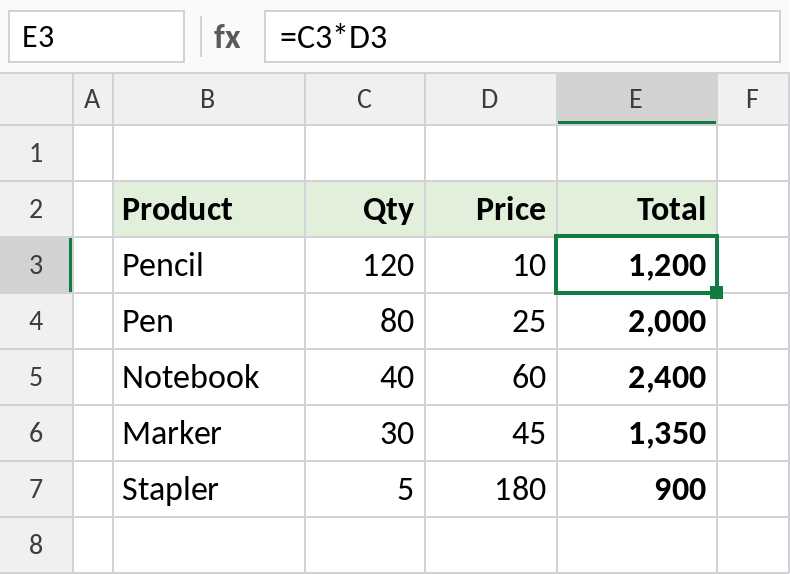
120 × 10 gives 1,200. Using references like C3 and D3, rather than =120*10, means the total stays correct when the quantity or price changes.
What’s inside a formula
| Part | Example | What it is |
|---|---|---|
| Equals sign | = |
Tells Excel this is a formula, not text |
| Cell reference | C3, C3:C7 |
The cell or range to use |
| Operator | + - * / ^ & |
The calculation to do |
| Constant | 50, "North" |
A fixed number, or text in double quotes |
| Function | SUM( ) |
A built-in formula, such as SUM or IF |
Operators and the order of calculation
Excel doesn’t always calculate left to right. Like school maths, multiplication and division come before addition and subtraction. Use brackets to change the order:
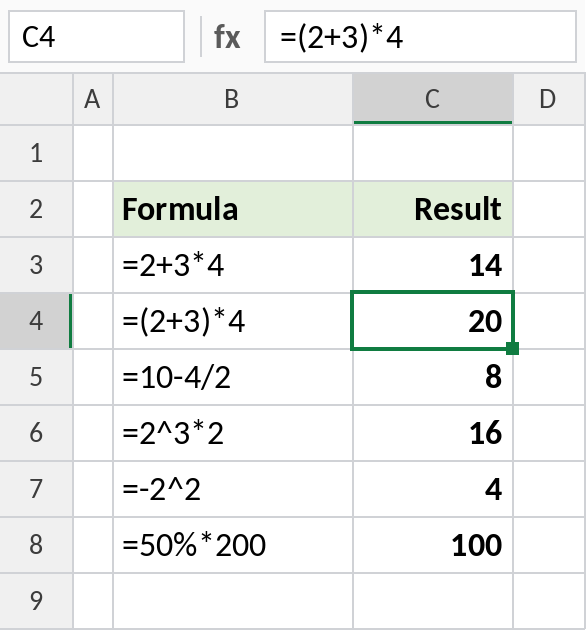
=2+3*4 returns 14, because 3 × 4 is worked out first. =(2+3)*4 returns 20. One surprise: =-2^2 returns 4, not -4, because Excel applies the minus sign before the power.
| Order | Operator | Meaning |
|---|---|---|
| 1 | ( ) |
Brackets: always first |
| 2 | - |
Negative sign, as in -5 |
| 3 | % |
Percent |
| 4 | ^ |
Power |
| 5 | * / |
Multiply and divide |
| 6 | + - |
Add and subtract |
| 7 | & |
Join text |
| 8 | = < > <= >= <> |
Compare values, returning TRUE or FALSE |
Copying formulas: relative references
Write a formula once, then drag the fill handle (the small square at the bottom right of the cell) down, or double-click it. Excel adjusts the references for each row:
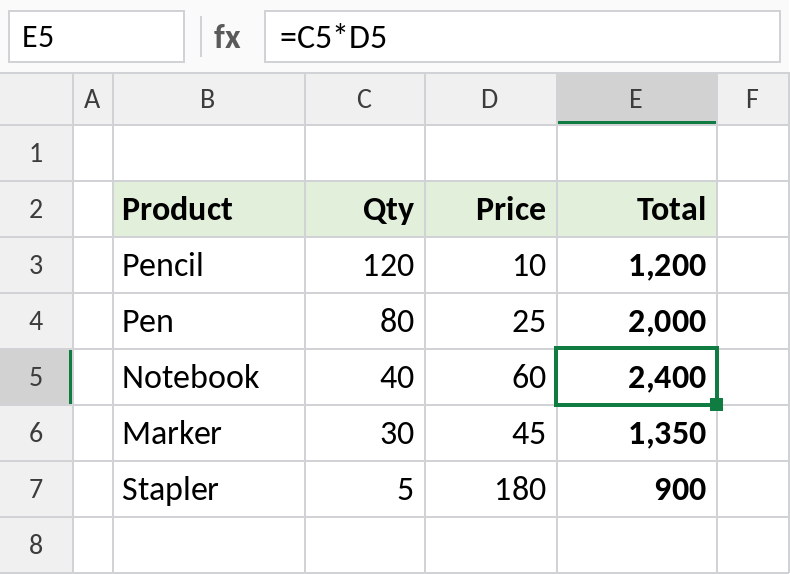
The formula in E3 is =C3*D3. Copied to E5, it becomes =C5*D5 automatically. This is called a relative reference, and it’s why one formula can fill a whole column.
Locking a cell: absolute references
Sometimes every row needs the same cell, such as one tax rate. Add dollar signs to lock it:
=C3*$G$2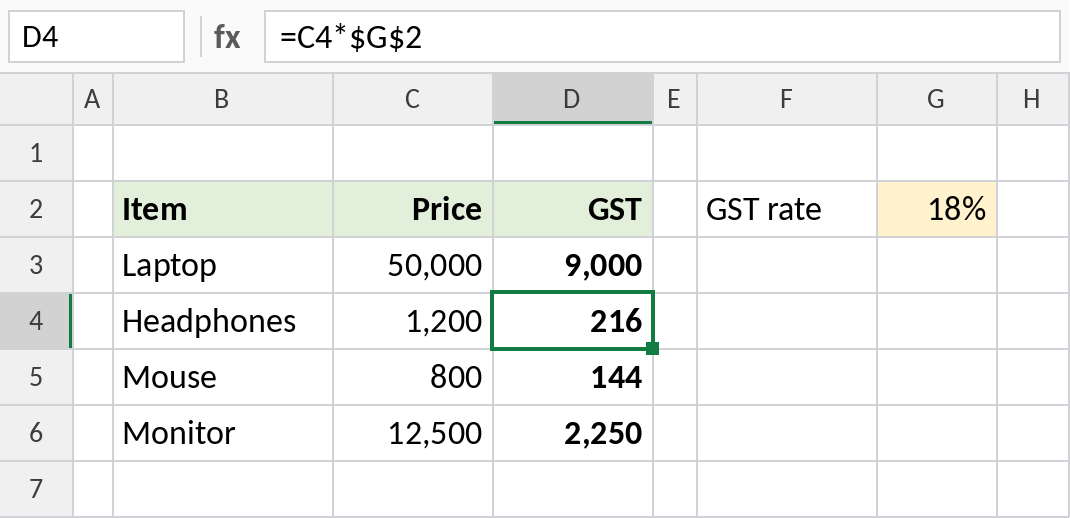
Copied down, C3 changes to C4, C5 and so on, but $G$2 always points to the 18% rate. Press F4 while editing a reference to add the dollar signs.
| Reference | When copied |
|---|---|
A1 |
Row and column both change (relative) |
$A$1 |
Never changes (absolute) |
A$1 |
Row stays fixed, column changes (mixed) |
$A1 |
Column stays fixed, row changes (mixed) |
Formulas with functions
Excel has more than 450 built-in functions: ready-made formulas for common jobs. Instead of =E3+E4+E5+E6+E7, use SUM:
=SUM(E3:E7)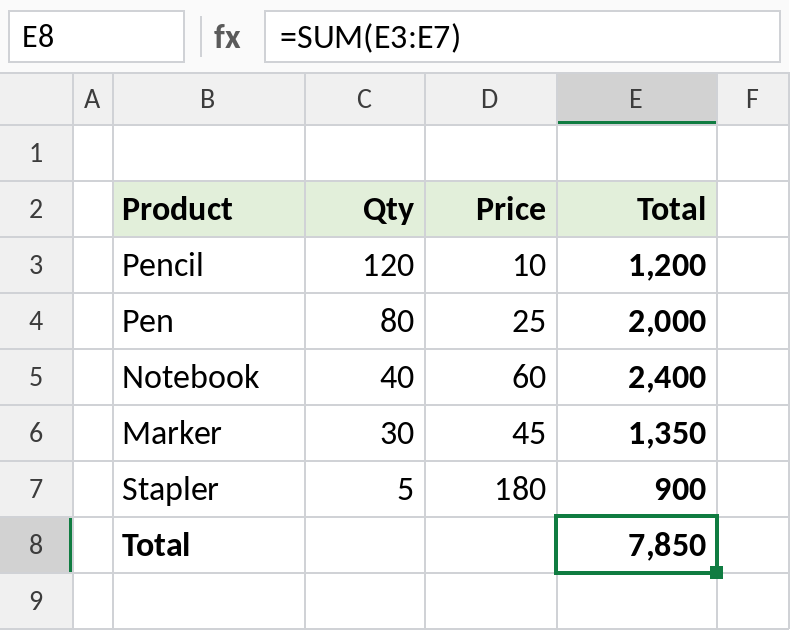
SUM adds the whole range, 7,850, and it’s shorter, easier to check, and still works when you insert a row inside the range.
Functions can also be combined. This formula uses SEARCH to find the space in a name, and LEFT to take everything before it:
=LEFT(B3,SEARCH(" ",B3)-1)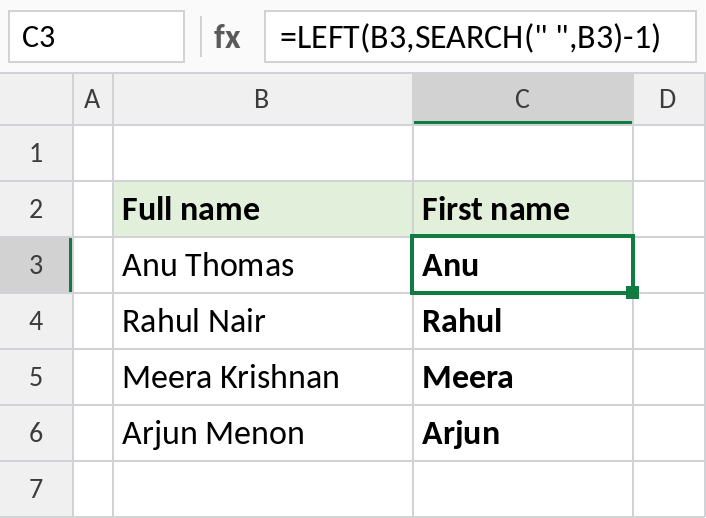
Anu Thomas becomes Anu. Excel calculates the inside function first, then passes the result to the outer one.
Popular function guides
See the full list on the Excel Functions page.
Formula tips
- Start with = . You can also start with
+or-; Excel adds the equals sign for you. - Click cells instead of typing addresses. After typing
=, click a cell and Excel inserts its reference. - Press F2 to edit a formula in the cell. The cells it uses are outlined in colour.
- Press Ctrl + ` to show every formula on the sheet instead of the results. Press it again to switch back.
- Use Formulas → Evaluate Formula to step through a long formula and see where it goes wrong.
- Text in formulas goes in double quotes, as in
=IF(B3="North","Yes","No"). Numbers don’t.
Common formula errors
| Error | Usually means |
|---|---|
#DIV/0! |
Dividing by zero or an empty cell |
#N/A |
A lookup couldn’t find the value |
#NAME? |
A misspelled function, or text without quotes |
#REF! |
A cell the formula used has been deleted |
#VALUE! |
Text where a number was expected |
#SPILL! |
The cells a result needs aren’t empty |
##### |
Not an error: the column is too narrow |
See Formula errors in Excel for causes and fixes, and IFERROR to show a friendly message instead.
Commonly used Excel formulas
- Get day name from date
- Get sheet name
- Extract the nth word from a sentence
- Find duplicate values
- Highlight duplicates
- Count cells that contain specific text
- Count cells that contain errors
- Separate positive and negative numbers
Frequently asked questions
What’s the difference between a formula and a function?
A formula is anything you type that starts with =, such as =B3+50. A function is a built-in formula with a name, such as SUM or IF. Most formulas use functions, but they don’t have to.
Why does my formula show as text instead of a result?
The cell is formatted as Text, or the formula has a space before the =. Change the format to General, then press F2 and Enter. If every formula shows as text, press Ctrl + `.
Why isn’t my formula updating?
Calculation may be set to Manual. Go to Formulas → Calculation Options → Automatic, or press F9 to recalculate.
How do I copy a formula without changing the references?
Use absolute references with $, as in $G$2. Or copy the formula text from the formula bar and paste it into the other cell’s formula bar.